

Windows 10 Editions Comparison
Which Windows 10 edition is right for you? A complete feature‑by‑feature guide to Home, Pro, Pro for Workstations, Education, and Enterprise.

Overview
How It Works
1. Installation Media
The same Windows 10 ISO or USB drive can install any edition. During setup, you enter a product key for the edition you purchased (Home, Pro, etc.). If you skip key entry, Windows installs Home by default.
2. Feature Unlock at Boot
After activation, the Feature Configuration Store enables edition‑specific capabilities. For example, Pro allows inbound Remote Desktop connections; Home does not. The kernel and core OS are identical – only the feature policy changes.
3. In‑Place Upgrade
You can upgrade from Home → Pro → Workstation (or Education/Enterprise with appropriate licences) by entering a new key in Settings. No reinstall is needed. Downgrades require a clean install.
Key Features
Free Upgrade Path for Students
Eligible students and teachers can get Windows 10 Education at no cost via Azure for Education – includes all Enterprise security features.
Most Scalable – Workstation Edition
Supports 6 TB RAM, 4 CPU sockets, ReFS, Persistent Memory, and RDMA – ideal for data science and engineering.
Best for Large Organisations – Enterprise
Credential Guard, Application Guard, DirectAccess, Defender for Endpoint, and LTSC. Requires volume licensing.
Best for Small Business – Pro
BitLocker, Remote Desktop host, Hyper‑V, Group Policy – affordable and manageable.
Best for Home Users – Home
Lowest cost, includes essential security (Defender), gaming (DirectX 12), and everyday apps.

Edition Comparison at a Glance
Quick summary of target users, price, and key differentiators
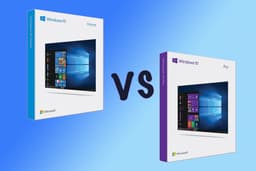
Windows 10 Home
$139 – Consumers, students (personal), casual gamers. No BitLocker, no Remote Desktop host, no Hyper‑V, max 128 GB RAM, 1 CPU socket. Includes Defender, Edge, DirectX 12, Windows Hello.
Windows 10 Pro
$199 – Small business, power users, developers. Adds BitLocker, Remote Desktop host, Hyper‑V, Windows Sandbox, Assigned Access, Group Policy, max 2 TB RAM, 2 CPU sockets.
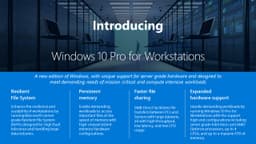
Windows 10 Pro for Workstations
$309 – Data scientists, CAD engineers, researchers. Adds ReFS (create), Persistent Memory (NVDIMM), SMB Direct (RDMA), max 6 TB RAM, 4 CPU sockets, Workstation Mode.
Windows 10 Education
$0 (eligible students/teachers) – Academic institutions. Same as Enterprise (Credential Guard, AppLocker, DirectAccess, etc.) plus Take a Test, Set up School PCs, Shared PC Mode. Free via Azure for Education.
Windows 10 Enterprise
Volume licensing – Large orgs, government, healthcare. Adds Credential Guard, Application Guard, DirectAccess, BranchCache, WDAC, Defender for Endpoint (with E5), LTSC option. Requires M365 E3/E5 or Software Assurance.
Security & Encryption Features
From basic antivirus to virtualisation‑based zero‑trust
BitLocker Drive Encryption
Home: No; Pro/Workstation/Education/Enterprise: Yes (full‑volume AES with TPM).
Credential Guard (VBS)
Home/Pro/Workstation: No; Education/Enterprise: Yes (isolates LSASS from kernel).
Application Guard (Edge)
Home/Pro/Workstation: No; Education/Enterprise: Yes (hardware‑isolated browsing).
Windows Defender Application Control (WDAC)
Home: No; Pro/Workstation: Limited (basic policies); Education/Enterprise: Full (hypervisor‑enforced whitelisting).
AppLocker
Home: No; Pro/Workstation/Education/Enterprise: Yes (user‑mode application whitelisting via Group Policy).
Hardware Scalability
How much RAM and how many CPUs each edition supports
Maximum RAM (64‑bit)
Home: 128 GB; Pro: 2 TB; Workstation: 6 TB; Education: 2 TB; Enterprise: 2 TB.
Physical CPU Sockets
Home: 1 socket; Pro: 2 sockets; Workstation: 4 sockets; Education: 2 sockets; Enterprise: 2 sockets.
Large Pages (2 MB / 1 GB)
Home/Pro/Education/Enterprise: 2 MB only; Workstation: up to 1 GB huge pages.
Virtualisation & Remote Access
Hyper‑V, Remote Desktop, and advanced virtualisation features
Remote Desktop (Host / Inbound)
Home: No; Pro/Workstation/Education/Enterprise: Yes (1 simultaneous session).
Hyper‑V Client
Home: No; Pro/Workstation/Education/Enterprise: Yes (run VMs).
Discrete Device Assignment (DDA)
Home/Pro/Education: No; Workstation/Enterprise: Yes (pass GPU/NVMe to VM).
Windows Sandbox
Home: No; Pro/Workstation/Education/Enterprise: Yes (temporary VM for testing).
Advanced File & Storage
ReFS, Persistent Memory, and SMB Direct
ReFS (Resilient File System) – create volumes
Home/Pro/Education: No (read only); Workstation: Yes; Enterprise: Yes (with SA).
Persistent Memory (NVDIMM‑N) DAX volumes
Home/Pro/Education: No; Workstation: Yes; Enterprise: Yes (with supported hardware).
SMB Direct (RDMA) client
Home/Pro/Education: No; Workstation: Yes; Enterprise: Yes.
Management & Deployment
Group Policy, Intune, DirectAccess, and update controls
Group Policy (local + domain)
Home: No; Pro/Workstation/Education/Enterprise: Yes (gpedit.msc + Active Directory).
Windows Update for Business (deferral)
Home: Pause only (35 days); Pro/Workstation/Education/Enterprise: Defer feature updates up to 365 days, quality updates 30 days.
DirectAccess (always‑on VPN)
Home/Pro/Workstation: No; Education/Enterprise: Yes.
BranchCache (WAN caching)
Home/Pro/Workstation: No; Education/Enterprise: Yes.
Long‑Term Servicing Channel (LTSC)
Home/Pro/Workstation/Education: No; Enterprise: Yes (with Software Assurance).
Education‑Specific Features
Take a Test, Set up School PCs, Shared PC Mode
Take a Test (secure browser)
Available only in Windows 10 Education (and some Enterprise with customisation).
Set up School PCs provisioning
Available only in Windows 10 Education (via app).
Shared PC Mode (auto‑profile cleanup)
Education: Full (built‑in); Pro/Enterprise: Limited (manual configuration).
Pros
- ✓One unified codebase – all editions receive the same security updates and driver support
- ✓Upgradable in‑place – move from Home → Pro → Workstation without reinstalling
- ✓Education is free – students and teachers get Enterprise features at no cost
- ✓Workstation edition unlocks server‑grade hardware on a desktop OS
- ✓Enterprise edition provides zero‑trust security (Credential Guard, Application Guard) out of the box
Cons
- ✗Home lacks basic business features – no BitLocker, no RDP host, no Hyper‑V
- ✗Pro for Workstations is expensive – $309, and requires expensive hardware to benefit
- ✗Enterprise not available at retail – only through volume licensing (M365 E3/E5)
- ✗Education requires academic eligibility – not for commercial use
- ✗Comparison can be overwhelming – many features are irrelevant for typical users
Use Cases
Hidden & Useful Shortcuts
Master Windows 10 with these time‑saving keyboard shortcuts
See which edition you are running (System Properties)
Check Windows 10 version and edition
Upgrade to a different edition (change product key)
Quickly see installed RAM and processor (helps decide if Workstation needed)
If this works, you have Pro or above (Group Policy Editor)
Check if TPM is present (required for BitLocker and Credential Guard)
Local Security Policy – available on Pro and above
Technical Specifications
| Minimum RAM for any edition | 4 GB (64‑bit) |
| Minimum storage | 64 GB |
| Processor | 1 GHz or faster, 2+ cores |
| TPM recommendation | TPM 2.0 recommended for BitLocker and VBS features |
| UEFI / Secure Boot | Recommended for all editions, required for some security features |
Feature Comparison Table: Home vs Pro vs Workstation vs Education vs Enterprise
| Feature | Windows 10 Home | Windows 10 Pro | win10Workstation | win10Education | win10Enterprise |
|---|---|---|---|---|---|
| Max RAM (64‑bit) | 128 GB | 2 TB | 6 TB | 2 TB | 2 TB |
| Max CPU Sockets | 1 | 2 | 4 | 2 | 2 |
| BitLocker Encryption | No | Yes | Yes | Yes | Yes |
| Credential Guard | No | No | No | Yes | Yes |
| Application Guard | No | No | No | Yes | Yes |
| AppLocker / WDAC | No | AppLocker only | AppLocker only | Full | Full |
| Remote Desktop Host | No | Yes | Yes | Yes | Yes |
| Hyper‑V Client | No | Yes | Yes (DDA) | Yes | Yes |
| Windows Sandbox | No | Yes | Yes | Yes | Yes |
| ReFS (create volume) | No | No | Yes | No | Yes (SA) |
| Persistent Memory (PMem) | No | No | Yes | No | Yes |
| SMB Direct (RDMA) | No | No | Yes | No | Yes |
| DirectAccess | No | No | No | Yes | Yes |
| BranchCache | No | No | No | Yes | Yes |
| Group Policy (domain) | No | Yes | Yes | Yes | Yes |
| Windows Update for Business (deferral) | 35 days pause | Up to 365 days | Up to 365 days | Up to 365 days | Up to 365 days + rings |
| LTSC (Long‑Term Servicing) | No | No | No | No | Yes (with SA) |
| Take a Test / Set up School PCs | No | No | No | Yes | No |