
Windows 10 Education
Enterprise‑grade security, management, and virtualisation – tailored for academic institutions, students, and educators, at no additional cost through volume licensing


Overview
How It Works
1. UEFI & Secure Boot (with BitLocker)
Same as Pro/Enterprise – TPM verification, BitLocker decryption (if enabled). Many schools enforce Secure Boot and BitLocker to prevent boot‑kit attacks and protect student data.
2. Kernel & Group Policy / MDM Enforcement
After kernel loads, the Local Security Authority applies device‑specific policies from Group Policy (if domain‑joined) or Microsoft Intune / MDM (if Azure AD joined). These policies can restrict USB storage, enforce Windows Defender settings, and disable consumer features like the Microsoft Store.
3. AppLocker & Windows Defender Application Control
AppLocker rules (set by IT) check every executable, script, and installer before it runs. Unauthorised software (e.g., games, unlicensed apps) is blocked. On shared lab PCs, this prevents students from tampering with system settings.
4. Provisioning Package Execution (Set up School PCs)
If the device was provisioned using the Set up School PCs app, a provisioning package applies settings: automatic logon with a generic student account, disk cleanup on logout (using Shared PC mode), and removal of built‑in apps like Xbox, Mail, and Camera.
5. Take a Test – Secure Assessment Mode
When a student launches a test via LMS or the Take a Test app, Windows enters a locked‑down mode: taskbar and Start Menu hidden, keyboard shortcuts (Alt+Tab, Win, Ctrl+Alt+Del) blocked, clipboard disabled, and screen capture prevented. The browser runs in a sandbox that only allows the exam URL.
6. Hyper‑V & Windows Sandbox (optional)
In computer science labs or for advanced students, Hyper‑V and Windows Sandbox are available for virtualisation – identical to Pro and Enterprise. Educators can use VMs to teach different OS environments without dual booting.
7. Windows Defender & Update for Business
Real‑time antivirus with cloud AI. Windows Update for Business (via Group Policy or MDM) allows IT to defer feature updates up to 365 days and quality updates for 30 days, ensuring that critical exam periods are not interrupted by reboots.
Key Features
Take a Test Secure Browser
Locked‑down assessment environment – blocks shortcuts, screen capture, and external navigation. Integrates with LMS and proctoring services. Prevents cheating during high‑stakes exams.
Set up School PCs & Provisioning
Create USB provisioning packages for shared lab PCs. Configure auto‑logon, disk cleanup on logoff, remove consumer apps, and enforce Shared PC Mode – all without imaging.
AppLocker Application Control
Whitelist only approved software (e.g., Office, Edge, Zoom). Block games, unlicensed apps, and social media. Run in audit mode to test rules. Enforced by Group Policy or MDM.
BitLocker Drive Encryption
Full‑volume AES encryption with TPM – protects student data and meets FERPA/GDPR compliance. BitLocker To Go secures USB drives.
Remote Desktop Host
Allow students/teachers to remotely access lab PCs from home. Supports VPN, RD Gateway, and NLA authentication.
Hyper‑V & Windows Sandbox
Run virtual machines (Linux, Windows Server) for computer science courses. Windows Sandbox offers a disposable, lightweight VM for testing untrusted code.
Group Policy & MDM (Intune)
Centralised management of thousands of devices – enforce security settings, deploy software, restrict USB ports, and configure Windows Update for Business.
Windows Defender & Firewall
Built‑in antivirus with cloud AI, behavioural blocking, and ransomware protection (Controlled Folder Access). Firewall can block non‑educational traffic.
Windows Update for Business
Defer feature updates for up to 365 days – avoid updates during exam periods. Use update rings to pilot changes before full deployment.
Microsoft Teams for Education Integration
Assignments, video meetings, OneNote Class Notebook, and grading directly integrated into the OS notification centre. School Data Sync automates roster management.
Assigned Access (Kiosk Mode)
Lock a PC to a single app (e.g., a learning app or assessment portal). Ideal for library catalogs, exam kiosks, or early childhood learning stations.
Cortana Disabled by Default
No voice assistant distractions. Can be re‑enabled via policy, but default configuration focuses on education.
Take a Test: Secure Browser for Assessments
Lock down Windows for high‑stakes exams – prevents cheating, copy/paste, and screen capture
How It Works
The Take a Test app (available in all Windows 10 Education devices) uses a locked‑down browser that runs in a separate desktop. When a student clicks a test link from their LMS (e.g., Canvas, Schoology, Moodle), the system switches to assessment mode: only the test page is visible, keyboard shortcuts are disabled, right‑click is blocked, and screen recording tools are prevented from capturing content.
Start a Test via URL Scheme
Teachers or LMS platforms can launch Take a Test directly using `ms-edu-secureassessment:` protocol or by calling the app with parameters. Students can also manually open the app and enter a test URL and session key provided by the educator.
Proctoring Integrations
Take a Test integrates with proctoring solutions like Proctorio, Respondus, and Honorlock. The app allows remote proctors to view the student’s screen, webcam, and environment while maintaining the locked‑down state – all without additional browser extensions.
Exit & Logging
Only the teacher or proctor can exit the test session (by pressing Ctrl+Alt+Delete and entering a password). The app logs all student actions (attempts to leave, keyboard shortcuts used) for post‑exam review.
Set up School PCs & Shared Device Configuration
Quickly provision lab PCs with auto‑logon, disk wipe, and locked‑down user experience
Set up School PCs App
A free app from the Microsoft Store (for IT admins) that creates provisioning packages for Windows 10 Education devices. You choose device type (Student PC, Teacher PC, Kiosk), then configure: local auto‑logon, accounts (guest or domain), disk cleanup policies, and which built‑in apps to remove.
Shared PC Mode
A built‑in Windows feature (enabled via Group Policy or provisioning) that: deletes local profiles after logoff, limits disk space per user, and redirects documents to OneDrive (or network share). Perfect for computer labs, libraries, and shared student laptops.
Windows Autopilot for Education
For student‑owned devices (1:1 programs), Autopilot allows schools to send a device directly to a student. When the student turns it on, the device automatically joins Azure AD, applies institution policies, and installs required learning apps – no on‑site IT needed.
Remove Consumer Bloat
Provisioning packages can remove or disable Xbox, Mail, Calendar, Weather, News, and other consumer apps. Cortana is disabled by default in Education edition (can be re‑enabled via policy), reducing distractions.
AppLocker & Application Control
Whitelist only approved educational software – block games and unlicensed apps
How AppLocker Works
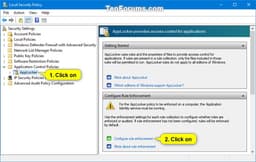
AppLocker allows IT admins to create rules that allow or deny specific applications based on file path, publisher (digital signature), or file hash. For example: allow all `.exe` files signed by Microsoft or Adobe, allow `C:\Program Files\SchoolApp\`, deny `\AppData\Local\Temp\*`. Rules are enforced at launch time.
Education‑Friendly Rulesets
Typical school configurations: Allow all Microsoft Office, Edge, Zoom, Teams, and specific educational software (e.g., MATLAB, Autodesk). Block common distractions: games (Steam, Epic Games Launcher), social media apps, and unapproved browsers (Chrome if not allowed).
AppLocker vs Windows Defender Application Control (WDAC)
AppLocker is policy‑based and easier to manage for schools. WDAC (formerly Device Guard) is a more restrictive, hypervisor‑protected mode that only allows kernel‑trusted binaries – overkill for most classrooms. Education edition supports both, but AppLocker is recommended for most scenarios.
Audit Mode & Reporting
Run AppLocker in Audit Only mode first to log what would be blocked without actually preventing execution. Generate reports via Event Viewer (Microsoft-Windows-AppLocker) to fine‑tune rules before enforcing.
All Enterprise Security Features (BitLocker, Defender, Firewall)
Same enterprise‑grade protection as Windows 10 Enterprise
BitLocker Drive Encryption
Full‑volume AES encryption with TPM + PIN. Required for many school data protection policies (GDPR, FERPA, COPPA). BitLocker To Go encrypts removable drives – prevents data leakage via USB sticks.
Windows Defender Advanced Threat Protection (now Defender for Endpoint)
While the base Education edition includes Defender Antivirus, schools can add Microsoft Defender for Endpoint (formerly ATP) – an enterprise EDR solution that provides behavioural analysis, automated investigation, and threat hunting across all campus devices.
Windows Firewall with Advanced Security
Configure inbound/outbound rules per application, IP, or port. Schools can block peer‑to‑peer traffic, limit student devices to only necessary educational services (e.g., allow HTTPS to *.school.org, block everything else).

Remote Desktop Host & Hyper‑V
Same remote access and virtualisation as Pro – useful for remote learning and CS labs
Remote Desktop Host
Students and teachers can remotely connect to their on‑campus Education PC from home using RDP (port 3389). Works with VPN or RD Gateway. Ideal for accessing lab software not available on personal devices.
Hyper‑V Virtualisation
In computer science classes, students can create VMs to run Linux, Windows Server, or different OS versions without affecting their host OS. Hyper‑V on Education supports nested virtualisation (e.g., run Docker inside a Linux VM).
Windows Sandbox
A lightweight, throwaway VM for testing suspicious downloads (e.g., student‑submitted code, unknown email attachments). Every session is clean – changes vanish on close.
Microsoft Classroom & Teams for Education Integration
Built‑in hub for assignments, collaboration, and class communication
Teams for Education
Windows 10 Education includes a link to Microsoft Teams (or pre‑installed on new provisioning packages). Teams provides chat, video meetings, assignment submission, OneNote Class Notebook, and grading – all integrated into the OS’s notification centre.
Assignments & Feedback
Students receive assignment notifications via Action Centre, submit Word/PPT files directly from File Explorer, and view teacher feedback without leaving the desktop.
School Data Sync (SDS)
IT admins can sync student rosters from any SIS (e.g., PowerSchool, Infinite Campus) into Azure Active Directory. Windows 10 Education then automatically populates Teams classes and OneDrive sharing permissions – no manual enrolment.
Pros
- ✓Completely free for eligible students and teachers – no cost for full Enterprise features
- ✓Identical to Windows 10 Enterprise – includes BitLocker, AppLocker, Group Policy, Hyper‑V, Remote Desktop Host, Windows Sandbox
- ✓Take a Test secure browser eliminates need for third‑party lockdown browsers (saves thousands of dollars per year)
- ✓Set up School PCs makes lab provisioning simple – even without imaging or deep IT knowledge
- ✓Shared PC Mode automatically cleans student profiles – reduces IT maintenance on lab computers
- ✓No consumer bloatware – Cortana, Xbox, and Windows Spotlight are disabled/absent by default
- ✓AppLocker prevents students from running games or unauthorised software (unlike Home/Pro where AppLocker is missing)
- ✓Long‑term management via Group Policy and Intune – perfect for 1:1 programs
- ✓Supports Windows Autopilot – zero‑touch deployment for student‑owned devices
- ✓Hyper‑V & WSL2 enable programming and computer science courses without dual booting
- ✓Same application compatibility as Pro and Enterprise – runs all educational software (Zoom, Canvas, MATLAB, Autodesk, etc.)
Cons
- ✗Not available for retail purchase – only through academic volume licensing or Azure for Education. Home users cannot buy it.
- ✗Requires an educational institution – you must be a student, teacher, or staff at a qualifying school/uni (with a valid `.edu` email or verification)
- ✗Same support end date – October 14, 2025, like all Windows 10 editions (shortened lifecycle for education? No, same).
- ✗Cortana disabled by default – may confuse users who expect voice assistant (but many see this as a pro)
- ✗Some consumer features missing – Windows Spotlight, Microsoft Store suggested apps, Consumer Experiences – but not needed in classrooms
- ✗Requires Azure AD or on‑prem AD for full management potential – small schools without IT may not utilise advanced features
- ✗Take a Test requires careful configuration – if not set up correctly, students may find loopholes (though Microsoft updates it regularly)
- ✗No Windows 11 upgrade path for older hardware – same as other editions, but schools with old PCs are stuck on Windows 10 after 2025 (unless they buy ESU)
- ✗Still includes telemetry – can be reduced via Group Policy but not eliminated entirely, which some privacy‑concerned schools dislike
Use Cases
Hidden & Useful Shortcuts
Master Windows 10 with these time‑saving keyboard shortcuts
Open or close Start Menu
Open Action Centre (notifications & quick settings)
Show or hide desktop (minimise/restore all windows)
Open File Explorer
Open Windows Settings
Lock your PC or switch accounts
Minimise all windows
Restore minimised windows
Choose projection mode (duplicate, extend, second screen only)
Open Run dialog – type `gpedit.msc` for Group Policy, `virtmgmt.msc` for Hyper‑V Manager
Open Windows Search
Open Ease of Access / Accessibility settings
Open Quick Link (power user) menu – includes Disk Management, Event Viewer, and Windows Terminal (Pro)
Open Task View (virtual desktops & timeline)
Switch input language and keyboard layout
Open emoji and kaomoji panel
Peek at desktop temporarily
Minimise all but the active window
Snap windows: left/right halves, maximise, or minimise
Move a window to another monitor
Open or switch to the app pinned at that taskbar position
Create a new virtual desktop
Close the current virtual desktop
Switch between virtual desktops
Open Xbox Game Bar (screenshot, recording, performance overlay)
Start / stop screen recording (Game Bar)
Take full‑screen screenshot and save to Pictures\Screenshots
Take screenshot of the active window (copies to clipboard)
Open Snip & Sketch for custom screenshot (rectangle, freeform, window, fullscreen)
Open clipboard history (must be enabled in Settings)
Open emoji panel (alternative to Win + .)
Open Connect quick action (wireless displays and audio devices)
Open dictation / voice typing
Turn on On‑Screen Keyboard
Zoom in or out using Magnifier
Close Magnifier
Open Feedback Hub
Open Task Manager directly
View open apps (stays on screen after releasing keys)
Switch between open apps
Close the current window or browser tab
Reopen the last closed browser tab
Rename selected file / folder
Refresh the active window
Undo an action
Redo an action
Create a new folder in File Explorer
Open Properties for selected item
Permanently delete a file (bypass Recycle Bin)
Open System Properties (About page)
Launch Local Group Policy Editor (Pro only)
Launch Hyper‑V Manager (Pro only)
Launch Local Security Policy (Pro only)
Launch Resultant Set of Policy (Pro)
Technical Specifications
| Architecture | 64‑bit (x86‑64) – 32‑bit available but deprecated |
| Processor | 1 GHz or faster with 2 or more cores; supports up to 2 physical sockets (like Enterprise; not 4 like Workstation) |
| RAM | 4 GB minimum; maximum 2 TB for 64‑bit (same as Pro, not 6 TB) |
| Storage | 64 GB or larger drive (SSD recommended); BitLocker requires TPM and UEFI |
| Graphics | DirectX 12 compatible with WDDM 2.0 driver |
| Display | Minimum 800x600; recommended 1920x1080 or higher |
| TPM | TPM 1.2 or 2.0 recommended for BitLocker (TPM 2.0 required for Windows 11 upgrade) |
| Secure Boot | Required for Take a Test secure boot policy; supported by default |
| Virtualisation | Intel VT-x / AMD-V required for Hyper‑V and Windows Sandbox |
| Windows Hello | Requires IR camera or fingerprint reader; PIN always available |
| Cortana | Disabled by default (can be enabled via Group Policy) |
| Internet | Required for initial setup (if using Azure AD), updates, and online features |
Windows 10 Education vs Windows 10 Pro vs Windows 10 Home
| Feature | education | pro | home |
|---|---|---|---|
| Availability | Academic volume licensing / Azure for Education (free) | Retail ($199), OEM | Retail ($139), OEM |
| AppLocker | Yes | Yes (via Group Policy) | No |
| BitLocker | Yes | Yes | No |
| Remote Desktop Host | Yes | Yes | No |
| Hyper‑V | Yes | Yes | No |
| Windows Sandbox | Yes | Yes | No |
| Assigned Access (Kiosk) | Yes | Yes | No |
| Take a Test | Yes (built‑in) | No (can be installed separately) | No |
| Set up School PCs | Yes (app available) | No (app not pre‑linked) | No |
| Cortana | Disabled by default | Enabled (can disable) | Enabled |
| Consumer bloatware (Xbox, Mail, etc.) | Removed via provisioning (or absent) | Present (can remove) | Present |
| Windows Spotlight | Disabled | Available | Available |
| Group Policy / MDM | Full (Enterprise level) | Full (local and domain) | Local only (no domain join) |
| Max RAM (64‑bit) | 2 TB | 2 TB | 128 GB |
| CPU Sockets | 2 sockets | 2 sockets | 1 socket |