

Windows 10 Enterprise
The most advanced Windows edition – comprehensive security, zero‑trust protection, full device management, and long‑term servicing for large organisations and mission‑critical environments


Overview
How It Works
1. UEFI, Secure Boot & BitLocker
UEFI firmware with Secure Boot verifies the bootloader signature. If BitLocker is enabled, TPM releases the decryption key only after measured boot verifies no tampering. On devices with DMA protection (Kernel DMA Protection), Thunderbolt ports are blocked until the OS loads.
2. Virtualisation‑Based Security (VBS) Initialisation
The hypervisor (Microsoft Hyper‑V) loads early, creating isolated virtualisation containers. Credential Guard runs LSA inside a secure VM. Windows Defender Application Guard (WDAG) prepares its own lightweight container. The main OS runs as the root partition with reduced privileges.
3. Kernel & Device Guard / WDAC
The kernel loads with Hypervisor‑Protected Code Integrity (HVCI). Every driver and kernel module is verified against a policy (WDAC) before execution. Only binaries signed by authorised publishers (Microsoft, your organisation) can run – effectively blocking rootkits and unsigned drivers.
4. DirectAccess & VPN Client
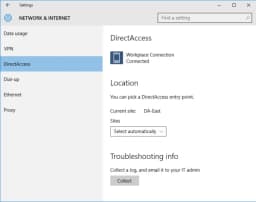
As soon as network connectivity is available, the DirectAccess client attempts to establish an IPsec tunnel to the corporate network using machine certificates. This happens before user logon, enabling remote device management (patch deployment, policy updates) even when no user is signed in.
5. User Logon with Windows Hello for Business
At the login screen, Windows Hello for Business (biometric or PIN) authenticates the user to Azure AD or on‑premises Active Directory. Remote Credential Guard allows the user to access remote resources without sending their credentials to the target machine.
6. Group Policy / MDM Refresh & BranchCache
Background services refresh Group Policy objects (GPOs) from domain controllers or Intune MDM policies. BranchCache in 'distributed cache mode' checks local peer cache for previously downloaded files, avoiding redundant WAN transfers.
7. Windows Defender Application Guard (Optional)
If an administrator launches Edge in Application Guard mode (or via policy), a new Hyper‑V container starts with a minimal Windows image. The browser runs inside this sandbox, with clipboard and file redirection controlled by policy. Closing the container discards all changes.
8. Microsoft Defender for Endpoint Sensors
The Defender for Endpoint sensor (`MsSense.exe`) monitors process creation, network connections, file writes, and registry changes. Behavioural signals are sent to the cloud for real‑time risk analysis. If a threat is detected, automated response actions (isolation, file quarantine) can be triggered.
9. Windows Update for Business & Desktop Analytics
Windows Update for Business uses deferral policies (up to 365 days for feature updates) and update rings. Desktop Analytics integrates with Configuration Manager to provide upgrade readiness insights – identifying application compatibility issues before deployment.
Key Features
Credential Guard
Virtualisation‑based security isolates LSASS – prevents pass‑the‑hash and pass‑the‑ticket attacks. Requires TPM 2.0 and UEFI lock.
Application Guard for Edge
Hardware‑isolated container for web browsing – malicious websites cannot compromise the host OS. Supports clipboard control and file redirection policies.
DirectAccess
Always‑on, transparent VPN using IPsec. Connects before user logon, supports multi‑site, and integrates with certificate authentication.
BranchCache
Distributed or hosted caching of SMB/HTTP content – reduces WAN bandwidth and latency for branch office users.
Windows Defender Application Control (WDAC)
Hypervisor‑protected code integrity – only allow trusted executables, drivers, and scripts. Blocks ransomware and fileless malware at kernel level.
AppLocker
User‑mode application whitelisting with rule collections for EXEs, MSIs, scripts, and Store apps. Audit mode for testing.
Microsoft Defender for Endpoint
Full enterprise EDR – behavioural sensors, cloud AI, automated investigation, threat & vulnerability management, and response actions (isolation, quarantine).
BitLocker
Full‑disk encryption with TPM and PIN. Enterprise adds BitLocker Network Unlock (boot from encrypted drive when connected to corporate network) and Microsoft BitLocker Administration and Monitoring (MBAM) integration.
Windows Hello for Business
Two‑factor authentication using biometrics + TPM. Replaces passwords with key‑based or certificate‑based authentication. Supports Azure AD and on‑premises AD.
Desktop Analytics
Integration with Configuration Manager to assess application compatibility with Windows feature updates. Provides pilot recommendations and rollback insights.
Windows Update for Business (Advanced)
Defer feature updates up to 365 days, quality updates up to 30 days. Create device groups (pilot, broad, critical) with update rings. Integrates with Delivery Optimization (peer‑to‑peer).
Universal Print
Cloud‑based print solution – no print servers needed. Enterprise edition includes management of Universal Print connectors and per‑user print job quota.
Microsoft Endpoint Manager (Intune + ConfigMgr) Co‑management
Seamlessly manage devices with both cloud MDM (Intune) and on‑premises SCCM. Enables conditional access, compliance policies, and remote actions (wipe, retire, sync).
Long‑Term Servicing Channel (LTSC)
10 years of security updates without feature changes – for fixed‑purpose devices (ATMs, medical, industrial). Only with Software Assurance.
Credential Guard & Virtualisation‑Based Security
Isolate secrets from the operating system – even kernel malware cannot steal hashes
How Credential Guard Works
Credential Guard uses Virtualisation‑Based Security (VBS) to run the Local Security Authority Subsystem Service (LSASS) inside a hardware‑isolated virtual machine. Windows processes outside this secure VM cannot access the hashed credentials, Kerberos tickets, or NTLM hashes stored inside. Pass‑the‑hash and Pass‑the‑ticket attacks become impossible because the secrets never leave the isolated environment.
Requirements & Enablement
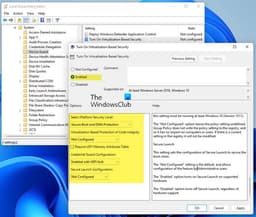
Requires a 64‑bit CPU with Intel VT‑x (with Extended Page Tables) or AMD‑V (with Rapid Virtualisation Indexing), UEFI lock, and TPM 2.0. Enable via Group Policy: `Computer Configuration → Administrative Templates → System → Device Guard → Turn on Virtualization Based Security`. Set to 'Enabled with Credential Guard'.
Key Protection & Remote Credential Guard
Credential Guard also protects Key Trust (TPM‑bound keys) and Certificate Trust (smartcard certificates). Remote Credential Guard extends this to RDP sessions – when a user connects to a remote PC, their credentials never leave the client machine. The target PC receives a Kerberos service ticket, not the user’s password hash.
Performance Impact
VBS imposes a small overhead (2‑5% CPU) for context switching between the secure VM and normal OS. On modern server‑class hardware, this is negligible for most workloads. Some legacy drivers and applications (especially anti‑cheat game software) are incompatible and will block VBS from turning on.

Windows Defender Application Guard (WDAG)
Hardware‑isolated browsing – the most secure way to surf untrusted websites
Hyper‑V Container per Browser Session
WDAG launches Microsoft Edge inside a lightweight Hyper‑V container. This container uses a copy of the host OS but runs in a separate virtual machine with no access to the host’s memory, storage, or network stack (except via a virtual switch). If a website exploits the browser, the attacker only gains access to the container – the host remains completely untouched.
Configuration & Policies
Enable via Group Policy or Intune: `Administrative Templates → Windows Components → Windows Defender Application Guard → Turn on Windows Defender Application Guard`. Policies control clipboard access (copy/paste allowed?), file download redirection (save to host?), and printing from the container. You can also define enterprise resource trust (e.g., internal SharePoint sites open in normal Edge).
Performance & User Experience
First launch takes 5–10 seconds to create the container; subsequent launches are faster due to caching. Once inside, browsing is near‑native. The container does not persist any data – cookies, downloads, and browsing history are discarded when the container closes. Users see a special UI indicating they are in 'Application Guard' mode.
Integration with Defender for Endpoint
If a malware sample is detected inside the container, Defender for Endpoint can automatically collect the payload and submit it for analysis. The container can also be automatically reset to a known‑good state if suspicious behaviour is detected.
DirectAccess & BranchCache
Seamless remote access and WAN optimisation for distributed organisations
DirectAccess – Always On VPN
DirectAccess provides an automatic, transparent, always‑on IPsec tunnel to the corporate network as soon as the device has internet access. No user input (no click‑to‑connect) – it uses machine certificates for authentication. Users access internal resources (file shares, intranet sites) as if they were on‑premises, even behind NATs and firewalls. DirectAccess also supports multi‑site deployment and integrates with Network Access Protection (NAP) (legacy).
DirectAccess vs Traditional VPN
Traditional VPN requires user to manually connect, can disconnect after idle, and does not work before user logon. DirectAccess connects automatically before login, stays connected indefinitely, and supports force tunneling (all internet traffic routed through corporate network) or split tunneling. It's ideal for remote management of laptops and constant access to internal resources.
BranchCache – Reduce WAN Traffic
BranchCache caches content from remote file servers (SMB shares) and HTTP (web) servers on local client PCs or an on‑site hosted cache server. In Distributed Cache Mode, each client caches content and shares it with peer clients via local LAN discovery (WS-Discovery). In Hosted Cache Mode, a dedicated Windows Server acts as the central cache. Subsequent requests for the same file are served from the local cache, drastically reducing latency and WAN utilisation.
BranchCache Security
Data is encrypted and integrity‑checked using SHA‑256. Clients receive only the portions of the file they request, and the cache is segmented to prevent unauthorised reconstruction. BranchCache works over HTTP and SMB protocols, seamlessly integrated with Windows File Server.
Windows Defender Application Control (WDAC) & AppLocker
Zero‑trust application whitelisting – only approved software runs
WDAC – Hypervisor‑Protected Code Integrity
WDAC (formerly Device Guard) allows administrators to specify exactly which executable files, drivers, scripts, and MSIs are trusted. Rules are based on file path, publisher (digital certificate), or file hash. The policy is enforced by the hypervisor (HVCI) and cannot be bypassed by kernel‑mode malware. WDAC can block not only known malware but also 'living off the land' binaries (e.g., PowerShell, wmic) that attackers use.
WDAC vs AppLocker
AppLocker is a user‑mode policy solution available in Enterprise (and Pro) – easier to manage but can be bypassed by kernel drivers. WDAC is a kernel‑mode, hypervisor‑protected solution – much stronger but requires careful planning and testing. Many organisations use both: WDAC for critical system protection, AppLocker for user‑app restrictions.
Creating WDAC Policies
Use `ConfigCI` PowerShell module on a reference PC. `New-CIPolicy` scans the system and generates an allowlist of all currently installed applications and drivers. `ConvertFrom-CIPolicy` converts to binary format. Deploy via Group Policy or MDM. You can run in Audit Mode initially to log what would be blocked without actually blocking it.
AppLocker Rulesets for Enterprises
AppLocker supports five rule collections: Executables (.exe, .com), Windows Installers (.msi, .msp), Scripts (.ps1, .bat, .vbs, .js), DLLs, and Packaged apps (Store apps). Policies can be applied per user group. For example: allow all users to run programs from `C:\Program Files` and `C:\Program Files (x86)`, but deny running from `%USERPROFILE%\Downloads` or `%TEMP%`.

Microsoft Defender for Endpoint (formerly ATP)
Enterprise EDR with automated investigation and response
Next‑Generation Protection
Behavioural sensors, cloud AI, and machine learning models analyse process behaviours, network connections, and registry changes. Attack surface reduction rules (e.g., block Office from creating child processes, block executable content from email client) prevent common infection vectors.
Endpoint Detection & Response (EDR)
Deep visibility into endpoints: alerts on suspicious behaviours, investigations across machines, and timeline views of process trees. Security operations centres (SOCs) can query raw telemetry for up to 6 months (depending on licence).
Automated Investigation & Remediation
When an alert is triggered, Defender for Endpoint can automatically investigate the incident: determine the root cause, isolate affected machines from the network (using Microsoft Intune integration), and remove malicious artifacts (files, registry keys, scheduled tasks).
Threat & Vulnerability Management (TVM)
TVM continuously discovers missing security updates, misconfigurations (e.g., weak firewall rules), and vulnerable software versions. It provides risk‑based prioritisation – 'Patch first' recommendations based on exploit likelihood and asset exposure.
Long‑Term Servicing Channel (LTSC)
10 years of security updates without feature changes – for fixed‑purpose devices
What is LTSC?
The Long‑Term Servicing Channel (formerly LTSB) is a special edition of Windows 10 Enterprise that does not receive feature updates. It includes only security and quality updates for up to 10 years (5 years mainstream + 5 years extended). Ideal for devices that must never change functionality: ATMs, medical equipment (MRI, CT scanners), industrial control systems (SCADA), kiosks, and embedded systems.
What’s Missing in LTSC
LTSC ships without Microsoft Edge (legacy version only, not Chromium), Windows Store, Cortana, Inbox apps (Mail, Calendar, Calculator), OneDrive, and modern features like Timeline and Sets. It also does not support Windows 10's semi‑annual feature updates (e.g., 21H2, 22H2). This makes LTSC incompatible with new hardware (drivers may require newer Windows builds).
Licensing & Availability
LTSC is only available to customers with active Software Assurance (volume licensing) or through Microsoft 365 E3/E5 (no LTSC there – you need SA). Each new LTSC release is supported for 10 years from its release date (e.g., Windows 10 Enterprise LTSC 2019 is supported until 2029, LTSC 2021 until 2031). You cannot upgrade from one LTSC release to another without a clean install.
LTSC vs Semi‑Annual Channel (SAC)
Most Enterprise devices should use the Semi‑Annual Channel (SAC) – get new features twice per year. LTSC is a specialised tool for critical infrastructure that cannot tolerate UI changes or reboot for feature updates. Microsoft advises against using LTSC for general‑purpose desktops, Office, or development machines.
Pros
- ✓Unmatched security – Credential Guard, Application Guard, WDAC, and Defender for Endpoint provide defence in depth
- ✓DirectAccess eliminates user‑facing VPN – seamless remote access management
- ✓BranchCache dramatically improves branch office experience for file servers and web apps
- ✓Full device management – Intune, ConfigMgr, Group Policy, and co‑management
- ✓Windows Update for Business with 1‑year deferral – plan updates on your schedule
- ✓Long‑Term Servicing Channel (LTSC) for regulatory or stability‑critical environments
- ✓AppLocker + WDAC – enforce zero‑trust application policies from kernel to user mode
- ✓Microsoft Defender for Endpoint provides enterprise EDR without third‑party agents
- ✓Desktop Analytics reduces upgrade risk with real‑world compatibility data
- ✓Remote Credential Guard protects credentials during RDP sessions
- ✓Universal Print reduces print server complexity
- ✓Supports Windows 10 in S mode – locked down to Microsoft Store apps only, for ultra‑restricted environments
Cons
- ✗Not available for retail – requires volume licensing agreement (Microsoft 365 E3/E5 or Software Assurance)
- ✗Higher cost than Pro – per‑user/per‑device subscription fees (typically $7–$14 per user/month as part of Microsoft 365)
- ✗Complexity – many features (WDAC, Credential Guard, Application Guard) require careful planning and testing
- ✗Hardware requirements – VBS features need TPM 2.0, UEFI, and recent CPUs; older devices may not support them
- ✗Application compatibility issues – WDAC can block legitimate software; Credential Guard breaks some third‑party authentication modules
- ✗Performance overhead – VBS (Credential Guard, HVCI) can reduce performance by 2‑8%, noticeable in high‑I/O or gaming workloads
- ✗DirectAccess requires Windows Server infrastructure (DirectAccess server, PKI, DNS, and IPv6 transition technologies)
- ✗BranchCache requires Windows Server file servers and careful cache sizing
- ✗Support ends October 14, 2025 – same as all Windows 10 editions (though LTSC goes to 2031 for specific releases)
- ✗No consumer features – Cortana, Windows Store (can be disabled), consumer cloud experiences are turned off by policy (may confuse users expecting them)
- ✗LTSC lacks modern browsers and app store – cannot install Microsoft Teams, new Edge, or Store apps without workarounds
Use Cases
Hidden & Useful Shortcuts
Master Windows 10 with these time‑saving keyboard shortcuts
Open Start Menu (Cortana disabled by default on Enterprise)
Open Action Centre
Show desktop
Open File Explorer
Open Settings
Lock workstation – secure against physical access
Open Run – use `secpol.msc` (local security), `gpedit.msc` (group policy), `wdagtool.exe` (Application Guard CLI)
Open Quick Link menu – includes Windows Terminal (if installed), Disk Management, Event Viewer
Open Search (Cortana disabled but search works)
Task View – virtual desktops (useful for separating classified and unclassified work)
New virtual desktop
Close current virtual desktop
Switch between virtual desktops
Open Game Bar (if not removed by policy)
Open Snip & Sketch for custom screenshots
Open clipboard history (if enabled by policy)
Emoji panel
Open Task Manager – can view VBS status (Performance → Virtualisation)
Open System Properties (shows 'Windows 10 Enterprise')
Open Connect (wireless displays) – may be disabled via policy
Open dictation (if not disabled)
Check TPM status (required for Credential Guard)
System Information – see 'Virtualisation‑Based Security' status
Advanced user account management
Computer Management – Local Users, Disk Management, Services
Windows Firewall with Advanced Security
Technical Specifications
| Architecture | 64‑bit (x86‑64) – 32‑bit available but deprecated; LTSC includes 32‑bit |
| Processor | 1 GHz or faster with 2 or more cores; supports up to 2 physical sockets (like Pro, not Workstation) |
| RAM | 4 GB minimum; maximum 2 TB for 64‑bit (same as Pro); Hyper‑V and VBS require additional memory overhead (~500 MB-2 GB) |
| Storage | 64 GB or larger drive (SSD strongly recommended); BitLocker requires TPM and UEFI |
| Graphics | DirectX 12 compatible with WDDM 2.0 driver; Application Guard requires GPU with Hyper‑V integration (any modern GPU) |
| Display | Minimum 800x600; recommended 1920x1080 or higher |
| TPM | TPM 2.0 required for Credential Guard and Device Guard; TPM 1.2 for BitLocker only |
| Virtualisation | Intel VT-x with EPT / AMD-V with RVI required for VBS, Credential Guard, Application Guard, and Hyper‑V |
| Secure Boot | Required for VBS features; strongly recommended for all Enterprise deployments |
| Memory for VBS | At least 8 GB RAM recommended if enabling Credential Guard or Application Guard (4 GB minimum, but performance suffers) |
| Internet | Required for initial setup, updates, DirectAccess, and Defender for Endpoint cloud features |
| DirectAccess Infrastructure | Requires Active Directory, PKI (smart card or machine certificates), and DirectAccess server running Windows Server 2016 or later |
Windows 10 Enterprise vs Windows 10 Pro vs Windows 10 Education
| Feature | enterprise | pro | education |
|---|---|---|---|
| Availability | Volume licensing (M365 E3/E5, SA) | Retail / OEM | Academic VL / Azure for Education (free) |
| Credential Guard | Yes | No | Yes (same as Enterprise) |
| Application Guard for Edge | Yes | No (consumer version only) | Yes |
| DirectAccess | Yes | No | Yes |
| BranchCache | Yes | No | Yes |
| WDAC (Hypervisor Code Integrity) | Yes (fully configurable) | Yes (but limited policies) | Yes (full) |
| AppLocker | Yes (full) | Yes (via GPO) | Yes |
| Microsoft Defender for Endpoint (ATP) | Yes (requires separate licence) | No | Yes (through M365 A5) |
| Long‑Term Servicing Channel (LTSC) | Yes (with SA) | No | No (only via VL, not free) |
| Desktop Analytics | Yes (with ConfigMgr) | No | Yes (with ConfigMgr) |
| Universal Print | Yes (full management) | Basic (client only) | Yes (with A3/A5) |
| Remote Desktop Host | Yes | Yes | Yes |
| Hyper‑V | Yes | Yes | Yes |
| Group Policy / MDM | Full (Intune + ConfigMgr co‑management) | Local + domain | Full (with appropriate licences) |
| Cortana | Disabled by default (can enable) | Enabled | Disabled by default |
| Max RAM (64‑bit) | 2 TB | 2 TB | 2 TB |