
Windows 10 Pro
The business‑ready edition of Windows 10 – advanced security, remote connectivity, and virtualisation tools for professionals and small businesses
Overview
How It Works
1. UEFI & Boot Manager (with BitLocker)
The UEFI firmware initialises hardware, then the Windows Boot Manager loads. If BitLocker is enabled, the TPM (Trusted Platform Module) releases the encryption key only after verifying that boot components haven't been tampered with. You may be prompted to enter a recovery key or PIN before the OS kernel loads – a critical defence against physical theft.
2. Kernel & Session Manager
The kernel loads core drivers and starts `smss.exe` (Session Manager). On Pro, the Local Security Authority (LSA) enforces Group Policy objects (GPOs) early in the boot cycle, applying security settings like password policies, audit rules, and software restrictions before the user logs in.
3. Logon & Remote Desktop Listener
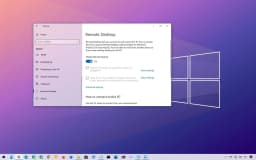
The login screen appears – you can sign in with password, PIN, or Windows Hello. Simultaneously, the Remote Desktop Host service (`TermService`) begins listening for incoming RDP connections on port 3389, allowing authorised users to connect remotely using Network Level Authentication.
4. Explorer Shell & Group Policy Refresh
After successful login, `explorer.exe` draws the desktop, taskbar, and Start Menu. In the background, the Group Policy Client service refreshes any domain‑based or local GPOs, applying folder redirection, startup scripts, or application control policies.
5. Hyper‑V Virtualisation Stack
If Hyper‑V is enabled, the hypervisor (`hvix64.exe`) loads at boot time, taking over hardware virtualisation extensions (Intel VT-x / AMD-V). Each virtual machine runs as a separate partition with its own memory and device access, isolated from the host OS for security and stability.
6. Pre‑emptive Multitasking & Resource Management
The kernel scheduler fairly allocates CPU time across all processes. On Pro, you can assign CPU affinity and set process priorities using built‑in tools like `PowerShell` or Task Manager – useful for dedicating resources to a Hyper‑V VM or a critical business application.
7. NTFS / ReFS & BitLocker Transparent Encryption
Files reside on NTFS (or optionally ReFS on Pro for Workstations). BitLocker encrypts the entire volume transparently – after boot, reads and writes are decrypted/encrypted on the fly with negligible performance impact. The BitLocker Drive Encryption service monitors for suspicious changes and can lock the drive if tampering is detected.
8. Windows Defender, Firewall & Update for Business
Windows Defender Antivirus runs real‑time protection, while the Windows Firewall filters network traffic. Pro allows deferral of feature updates via Windows Update for Business (up to 365 days) and the ability to use Group Policy to set active hours or target specific update rings – giving IT admins control over when new features arrive.
9. Windows Sandbox & WSL2 Integration
Windows Sandbox launches a lightweight, disposable virtual machine based on the current OS image – perfect for testing suspicious downloads. WSL2 runs a real Linux kernel inside a managed VM, with full system call compatibility. Both features leverage Windows 10 Pro’s hypervisor technology for isolation.
Key Features
BitLocker Drive Encryption
Full‑volume AES encryption with TPM + PIN support. Protects data from offline theft. Includes BitLocker To Go for USB drives and automatic recovery key backup to Active Directory.
Remote Desktop Host
Accept inbound RDP connections – securely access your Pro PC from anywhere. Supports Network Level Authentication, multiple monitors, and device redirection.
Hyper‑V Virtualisation
Built‑in Type‑1 hypervisor to run Windows, Linux, and other operating systems as virtual machines with near‑native performance. Supports checkpoints, dynamic memory, and virtual switches.
Group Policy Management
Local Group Policy Editor (`gpedit.msc`) for granular control over Windows settings. On a domain, centralised management of security, software deployment, and user environments.
Windows Sandbox
Disposable, lightweight virtual machine to test untrusted applications safely. Every session starts clean – changes are discarded on close.
Assigned Access (Kiosk Mode)
Lock a user account to a single app or a curated set of apps. Ideal for public kiosks, digital signage, or restricted employee workstations.
Windows Update for Business
Defer feature updates for up to 365 days and quality updates for up to 30 days. Configure update rings via Group Policy or MDM to stage deployments across your organisation.
Windows Defender & Firewall with Advanced Security
Enterprise‑grade antivirus and firewall, controllable via Group Policy. Includes Controlled Folder Access (anti‑ransomware) and IPsec configuration.
Hyper‑Threading & 2‑CPU Support
Supports up to 2 physical CPUs (sockets) and 2 TB of RAM (64‑bit) – ideal for high‑end workstations and data‑intensive applications.
Azure AD Join & Enterprise State Roaming
Join your PC to Azure Active Directory for cloud‑first identity management. Roam settings, passwords, and Windows configuration across multiple Azure AD‑joined devices.
Client Hyper‑V & WSL2
Run virtual machines and a full Linux kernel inside Windows (Windows Subsystem for Linux 2) with seamless integration – no dual boot required.
Enterprise Mode Internet Explorer (EMIE)
Run legacy web applications that require Internet Explorer 8/9/10/11 compatibility – essential for businesses migrating older internal tools.
Start Menu & Taskbar: Your Command Centre
Familiar, fast, and fully customisable – same as Home, but manageable via Group Policy
Live Tiles & Groups
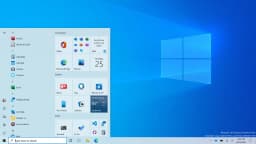
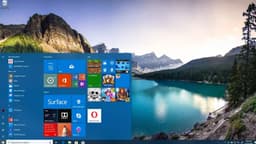
The right side of the Start Menu can be filled with dynamic Live Tiles that show news, weather, calendar, and email previews. Tiles can be resized, grouped, and even combined into folders. On Pro, administrators can use Group Policy to enforce a standard Start layout across multiple users (via `Start Layout` XML).
All Apps List & Recently Added
The left pane shows most‑used apps; click ‘All apps’ for an alphabetical list of every installed program. Newly installed software is highlighted at the top. Pro allows hiding the ‘Recently added’ list via Group Policy for consistent user environments.
Integrated Search (Instant Everything)
Taskbar search (`Win + S`) finds files, apps, settings, and web results. On a Pro device joined to a domain, search can also query Active Directory for users and computers. `Win + R` opens Run – try `gpedit.msc` to launch the Local Group Policy Editor.
Taskbar Customisation & Jump Lists
Pin apps to the taskbar, rearrange them, and move the taskbar to any edge. Right‑click an icon for Jump Lists (recent files/tasks). Pro supports taskbar configuration via Group Policy – for example, locking the taskbar or removing the Search box across all managed PCs.
Task View & Virtual Desktops
`Win + Tab` opens Task View, letting you create multiple virtual desktops – perfect for separating work, personal, and development environments. Pro adds the ability to assign specific apps to open on particular virtual desktops using PowerShell scripts.

Microsoft Edge: A Browser Built for Speed and Security
Based on Chromium, with extra privacy and productivity features
Chromium Power Under the Hood
Edge is now built on the same open‑source engine as Google Chrome, so every Chrome Web Store extension works instantly. Install ad blockers, password managers, grammar checkers, and developer tools without any compatibility issues. The browser stays up‑to‑date with the latest web standards and security patches automatically.
Vertical Tabs – Organise Differently
Instead of a crowded horizontal tab strip, switch to vertical tabs on the left. You can see the full title of each open page, drag to reorder, group related tabs, and reclaim precious vertical screen space on widescreen monitors. It’s a game‑changer for heavy multitaskers.
Collections – Research Made Simple
Drag text, images, and links into a Collection to save them together. Perfect for planning a trip, gathering project references, or compiling a school report. Collections sync across devices and can be exported directly into Word or Excel.
Tracking Prevention That Actually Works
Choose from Basic, Balanced, or Strict tracking prevention. Edge blocks known trackers without breaking websites, and you can see exactly how many trackers were blocked on each site. Your browsing stays private and faster.
Immersive Reader – Distraction‑Free Reading
Click the book icon to strip away ads, sidebars, and clutter. Immersive Reader leaves only the article text and images, with adjustable font size, spacing, and even a Read Aloud feature that narrates the page in natural voices. Essential for students and anyone with reading difficulties.
Seamless Sync Across Devices
Sign in with your Microsoft account and Edge syncs passwords, favourites, browsing history, and even open tabs across your Windows PC, Android phone, and iOS devices. Start reading an article on your phone and finish it on your desktop with a single click.
Built‑in PDF Reader & Annotator
Open any PDF directly in Edge and use the highlighter, pen, and text tools to annotate. Fill out forms, sign documents digitally, and even use the Read Aloud function on PDFs. No need for a separate PDF application.
Performance & Battery Efficiency
Edge is engineered to be gentle on your laptop’s battery. Sleeping tabs and efficient resource management mean you can browse longer without plugging in. It’s officially one of the most energy‑efficient browsers available for Windows.
BitLocker Drive Encryption: Full‑Volume Security
Protect your data from theft and offline attacks – even if the PC is lost
How BitLocker Works
BitLocker encrypts the entire Windows system drive (and optionally fixed data drives) using AES‑128 or AES‑256. The encryption key is stored in a Trusted Platform Module (TPM) chip. At boot, the TPM releases the key only after verifying that boot components haven't changed. You can add a PIN or a startup key on a USB drive for two‑factor authentication.
TPM + PIN / Password
While a TPM alone protects against offline attacks (someone removing your hard drive), a TPM + PIN prevents a stolen laptop from booting even if the hardware is unchanged. Pro allows you to configure these authentication methods via BitLocker Group Policy.
BitLocker To Go (Removable Drives)
Encrypt USB flash drives and external hard disks with the same AES algorithm. When you plug the drive into any Windows 10 Pro or Enterprise PC, you're prompted for the password – unencrypted access is blocked. Perfect for transporting sensitive client data.
Recovery Key & Active Directory Backup
During BitLocker setup, a recovery key (48‑digit numeric password) is generated. On domain‑joined Pro devices, this key can be automatically backed up to Active Directory, allowing IT admins to recover data even if the user forgets their PIN.
Performance Impact
Modern CPUs with AES‑NI instructions accelerate encryption/decryption to near‑zero overhead. You'll likely not notice any speed difference in daily use – unlike software‑based encryption, BitLocker's hardware offloading is extremely efficient.
Remote Desktop Host: Work from Anywhere
Securely access your office or home PC from another device – full desktop experience
Remote Desktop Protocol (RDP)
Windows 10 Pro includes the Remote Desktop Host service, allowing you to connect to your Pro PC from any device running a Remote Desktop client (Windows, macOS, Android, iOS). Unlike Home (client only), Pro accepts inbound connections.
Network Level Authentication (NLA)
NLA requires the user to authenticate before a full RDP session is established, reducing the risk of denial‑of‑service attacks and credential harvesting. It's enabled by default and can be managed via System Properties or Group Policy.
Multiple Session Support (with caveats)
By default, Windows 10 Pro allows only one active remote session at a time (the local console logs out). For concurrent sessions, you need Windows Server with Remote Desktop Services – but for single‑user remote access, it's perfect.
RemoteFX & GPU Virtualisation
When connecting to a Pro workstation with a supported GPU, Remote Desktop can use RemoteFX (deprecated but available in older versions) or basic GPU acceleration for graphics‑intensive applications like CAD or video editing. In modern Windows 10 Pro, enhanced session mode provides high‑DPI scaling and clipboard sharing.
Security & Firewall Configuration
RDP listens on port 3389 by default. Windows Firewall automatically creates an inbound rule when you enable Remote Desktop. For internet access, always use a VPN or RD Gateway – never expose RDP directly to the internet without additional protections like Network Policy Server (NPS).
Hyper‑V: Built‑in Virtualisation
Run multiple operating systems on the same hardware – no third‑party software needed
Type‑1 Hypervisor
Hyper‑V sits directly on the hardware (not inside Windows). The parent partition (your main Windows 10 Pro) shares CPU and memory with child partitions (virtual machines). This architecture delivers near‑native performance and better security than Type‑2 hypervisors like VirtualBox.
Supported Guest OSes
Run Windows (XP through 11), various Linux distributions (Ubuntu, Debian, RHEL, SUSE), and FreeBSD. Integration services (drivers) are available for improved mouse, video, and networking performance. Hyper‑V supports both 32‑bit and 64‑bit guests.
Virtual Networking & Storage
Create virtual switches (external, internal, private) to connect VMs to your physical network or isolate them. Use .vhdx virtual hard disks with dynamic expansion or fixed size. Passthrough disks allow a VM to directly access a physical hard drive.
Checkpoints & Quick Migration
Take a checkpoint (snapshot) of a VM before applying updates or testing software – instantly revert if something goes wrong. Live migration (moving a running VM between Hyper‑V hosts) requires Windows Server, but Pro supports export/import for offline movement.
Enhanced Session Mode
Connect to VMs with clipboard sharing, drive redirection, and dynamic resolution resizing – just like RDP. Enhanced Session Mode works for Windows guests and, with extra configuration, for Linux (via XRDP).

Group Policy Management: Centralised Control
Configure thousands of Windows settings on a single device (or across a domain)
Local Group Policy Editor (gpedit.msc)
Even on a standalone (non‑domain) Pro device, you can launch `gpedit.msc` to modify hundreds of advanced settings: disable Windows Update auto‑reboot, restrict Control Panel access, enforce password complexity, disable telemetry, and much more. These policies apply only to the local machine.
Domain‑Based Group Policy
When a Windows 10 Pro device is joined to an Active Directory domain, Group Policy Objects (GPOs) created by IT administrators are applied centrally. This allows mass configuration of security, software deployment, folder redirection, and startup scripts across hundreds or thousands of PCs.
Security Policies & Auditing
Set account lockout thresholds, audit logon events, define user rights (e.g., who can shut down the system), and enforce AppLocker rules (available in Pro, unlike Home) to whitelist only approved applications. All these policies are managed under Computer Configuration → Windows Settings → Security Settings.
Administrative Templates
ADMX files contain registry‑based policies for Windows components, Microsoft Office, and even Edge. You can import custom ADMX templates from third‑party vendors. Policies such as 'Turn off Windows Update automatic updates' (not recommended) or 'Configure OneDrive silent account configuration' are typical examples.
Resultant Set of Policy (RSOP)
Run `rsop.msc` to see which policies are currently applied and their source (local vs domain). For advanced troubleshooting, `gpresult /h report.html` generates a detailed HTML report of all effective policies.

Windows Sandbox & Assigned Access
Safe testing environments and dedicated kiosk mode
Windows Sandbox (Isolated Temporary Desktop)
A lightweight virtual machine that starts from a clean snapshot of your current Windows 10 Pro installation. Launch untrusted applications, download suspicious files, or test browser configurations – anything you do in the Sandbox disappears when you close it. Requires virtualisation support (Intel VT-x / AMD-V).
Enable Windows Sandbox
Go to Turn Windows features on or off → check 'Windows Sandbox' → reboot. Launch from Start Menu. The Sandbox shares host memory and CPU but is completely isolated (separate kernel). Files can be copied in/out via clipboard or drag‑and‑drop.
Assigned Access (Kiosk Mode)
Restrict a user account to run only one Universal Windows Platform (UWP) app or a single classic Win32 application. Ideal for public‑facing kiosks, library catalogues, or point‑of‑sale systems. Configure via Settings → Accounts → Family & other users → Set up assigned access, or using PowerShell `Set-AssignedAccess`.
Multi‑App Kiosk Mode (Pro only)
Windows 10 Pro also supports multi‑app kiosk mode (introduced in version 1809), allowing you to present a curated Start Menu with only approved apps – perfect for restricted employee workstations or education environments. Configure via Windows Configuration Designer or XML provisioning packages.

Windows Defender & Firewall: Enterprise‑Grade Protection
Built‑in antivirus with centralised management via Group Policy
Real‑Time Protection & Cloud AI
Same as Home edition – machine learning from billions of devices blocks new threats instantly. On Pro, you can configure Defender via Group Policy (e.g., enable ‘Block at first sight’, set cloud timeout, disable removable drive scanning) for consistent protection across an organisation.
Controlled Folder Access (Anti‑Ransomware)
Protects sensitive folders from unauthorised writes. On Pro, you can define protected folders via Group Policy and whitelist specific applications using a central configuration. This is a key feature for business environments handling confidential data.
Windows Firewall with Advanced Security
Beyond the basic on/off switch, Pro provides an MMC snap‑in (`wf.msc`) for configuring inbound/outbound rules based on IP addresses, ports, programs, and services. Create connection security rules (IPsec) for encrypting traffic between domain machines. All rules can be deployed via Group Policy.
Microsoft Defender for Endpoint (add‑on)
While not included in the base Pro licence, Windows 10 Pro can be enrolled into Microsoft Defender for Endpoint (formerly Defender ATP) – an enterprise EDR solution that provides advanced threat hunting, automated investigation, and response capabilities. This requires a separate subscription.

DirectX 12 Ultimate & Xbox Integration
The same gaming powerhouse as Home – ready for ray tracing and Game Pass
DirectX 12 Ultimate
Ray tracing, variable rate shading, mesh shaders – identical to Home. Pro users who game on their workstations get the same high‑fidelity graphics and performance. All major game engines and AAA titles support DirectX 12 on Windows 10 Pro.
Xbox Game Bar & Game Mode
`Win + G` opens the Game Bar for screenshots, recording, performance monitoring, and Xbox social features. Game Mode prioritises CPU/GPU resources for the active game. Pro adds the ability to disable Game Mode via Group Policy if needed for corporate environments.
Xbox Game Pass for PC
Access over 100 games with a subscription, including first‑party Microsoft titles on launch day. Game Pass works identically on Pro and Home – no restrictions.

Windows Hello & Biometric Sign‑in
Password‑free authentication with enterprise security
Face, Fingerprint, or PIN
Same as Home edition – IR camera for face recognition or fingerprint reader. On Pro, you can enforce Windows Hello via Group Policy (require fingerprint or PIN for all users) and integrate it with Azure AD for seamless single sign‑on to cloud resources.
Windows Hello for Business
Pro supports Windows Hello for Business, which replaces passwords with strong two‑factor authentication using a TPM and a user gesture (PIN or biometric). This works with on‑prem Active Directory or Azure AD, enabling certificate‑based or key‑based authentication to corporate resources.

OneDrive & Cloud Integration
5 GB free, Files On‑Demand, and now with Group Policy controls
Files On‑Demand & Personal Vault
All OneDrive features from Home are present. On Pro, IT admins can use Group Policy to silently redirect known folders (Desktop, Documents, Pictures) to OneDrive for backup, enforce Files On‑Demand, and disable consumer cloud features if using OneDrive for Business.
OneDrive Sync with Azure AD
When a Pro device is joined to Azure AD, OneDrive can automatically sign in with the user’s work account and sync SharePoint sites – no extra configuration required by the end user.
Pros
- ✓BitLocker encryption protects sensitive data from theft – enterprise‑grade security for individuals
- ✓Remote Desktop Host lets you access your work PC from home or on the road
- ✓Hyper‑V provides free, powerful virtualisation – no need for VMware Workstation or VirtualBox
- ✓Group Policy gives you granular control over Windows behaviour – disable telemetry, block Windows Store, enforce password policies
- ✓Windows Sandbox offers a safe, disposable environment for testing unknown software
- ✓Assigned Access (Kiosk Mode) ideal for public‑facing or restricted user scenarios
- ✓Windows Update for Business allows deferral of feature updates – avoid unexpected changes during critical projects
- ✓Supports up to 2 TB RAM and 2 physical CPUs – scales to high‑end workstations
- ✓Azure AD Join simplifies cloud‑first authentication and device management
- ✓AppLocker (available via Group Policy) lets you whitelist only approved applications – much more powerful than Home’s limited controls
- ✓Client Hyper‑V supports nested virtualisation (on supported hardware) and discrete device assignment (DDA) for GPUs
- ✓Enterprise Mode Internet Explorer keeps legacy business web apps running
Cons
- ✗Higher cost ($199.99 vs $139.99 for Home) – not worth it for casual home users
- ✗Overkill for basic tasks – most home users never use BitLocker, Hyper‑V, or Group Policy
- ✗Still has telemetry – though Group Policy can reduce it to a minimum (Security level), some data still flows to Microsoft
- ✗Forced updates cannot be fully disabled – but can be deferred via Group Policy or Windows Update for Business
- ✗Requires TPM 1.2 or 2.0 for BitLocker (most modern PCs have it, but older machines may not)
- ✗Remote Desktop Host requires a public IP or VPN for internet access – no built‑in DDNS or relay
- ✗Hyper‑V cannot run all guest OSes (e.g., macOS is unsupported) and lacks USB passthrough
- ✗Windows Sandbox requires at least 4 GB RAM and virtualisation support – not available on low‑end devices
- ✗Local Group Policy Editor is powerful but risky – incorrect settings can break functionality
- ✗No free upgrade from Windows 7/8.1 (unlike Home, which had a free upgrade period – that ended in 2016)
- ✗Support ends October 14, 2025 – after that, only Extended Security Updates (paid) are available
Use Cases
Hidden & Useful Shortcuts
Master Windows 10 with these time‑saving keyboard shortcuts
Open or close Start Menu
Open Action Centre (notifications & quick settings)
Show or hide desktop (minimise/restore all windows)
Open File Explorer
Open Windows Settings
Lock your PC or switch accounts
Minimise all windows
Restore minimised windows
Choose projection mode (duplicate, extend, second screen only)
Open Run dialog – type `gpedit.msc` for Group Policy, `virtmgmt.msc` for Hyper‑V Manager
Open Windows Search
Open Ease of Access / Accessibility settings
Open Quick Link (power user) menu – includes Disk Management, Event Viewer, and Windows Terminal (Pro)
Open Task View (virtual desktops & timeline)
Switch input language and keyboard layout
Open emoji and kaomoji panel
Peek at desktop temporarily
Minimise all but the active window
Snap windows: left/right halves, maximise, or minimise
Move a window to another monitor
Open or switch to the app pinned at that taskbar position
Create a new virtual desktop
Close the current virtual desktop
Switch between virtual desktops
Open Xbox Game Bar (screenshot, recording, performance overlay)
Start / stop screen recording (Game Bar)
Take full‑screen screenshot and save to Pictures\Screenshots
Take screenshot of the active window (copies to clipboard)
Open Snip & Sketch for custom screenshot (rectangle, freeform, window, fullscreen)
Open clipboard history (must be enabled in Settings)
Open emoji panel (alternative to Win + .)
Open Connect quick action (wireless displays and audio devices)
Open dictation / voice typing
Turn on On‑Screen Keyboard
Zoom in or out using Magnifier
Close Magnifier
Open Feedback Hub
Open Task Manager directly
View open apps (stays on screen after releasing keys)
Switch between open apps
Close the current window or browser tab
Reopen the last closed browser tab
Rename selected file / folder
Refresh the active window
Undo an action
Redo an action
Create a new folder in File Explorer
Open Properties for selected item
Permanently delete a file (bypass Recycle Bin)
Open System Properties (About page)
Launch Local Group Policy Editor (Pro only)
Launch Hyper‑V Manager (Pro only)
Launch Local Security Policy (Pro only)
Launch Resultant Set of Policy (Pro)
Technical Specifications
| Architecture | 64‑bit (x86‑64) – 32‑bit available but deprecated |
| Processor | 1 GHz or faster with 2 or more cores; supports up to 2 physical CPUs |
| RAM | 4 GB minimum; maximum 2 TB for 64‑bit (Home max is 128 GB) |
| Storage | 64 GB or larger drive (SSD recommended); BitLocker requires TPM and UEFI |
| Graphics | DirectX 12 compatible with WDDM 2.0 driver; Hyper‑V requires SLAT (Second Level Address Translation) |
| Display | Minimum 800x600; recommended 1920x1080 or higher |
| TPM | TPM 1.2 or 2.0 required for BitLocker (TPM 2.0 recommended for Windows 11 upgrade) |
| Secure Boot | Supported, required for BitLocker integrity check |
| Virtualisation | Intel VT-x / AMD-V required for Hyper‑V and Windows Sandbox |
| Windows Hello | Requires IR camera or fingerprint reader; PIN always available |
| Cortana | Requires microphone; can be disabled via Group Policy |
| Internet | Required for initial setup, updates, and Microsoft account/Azure AD features |
Windows 10 Pro vs Windows 10 Home
| Feature | Windows 10 Pro | Windows 10 Home |
|---|---|---|
| Price | $199.99 | $139.99 |
| BitLocker Drive Encryption | Yes (TPM required) | No |
| Remote Desktop (Host) | Yes (inbound RDP) | Client only (outbound) |
| Hyper‑V Virtualisation | Yes | No |
| Group Policy Management | Yes (local and domain) | No |
| Windows Sandbox | Yes | No |
| Assigned Access (Kiosk Mode) | Yes (single and multi‑app) | No |
| Windows Update for Business | Yes (defer updates) | No (consumer updates only) |
| Enterprise Mode Internet Explorer | Yes | No |
| AppLocker | Yes (via Group Policy) | No |
| Client Hyper‑V Nested Virtualisation | Yes | No |
| Max RAM (64‑bit) | 2 TB | 128 GB |
| Physical CPU Support | 2 sockets | 1 socket |
| Azure AD Join | Yes | No |
| Remote Desktop (Host) with multiple sessions | No (one active session) | Not applicable |