

Windows 10 Pro for Workstations
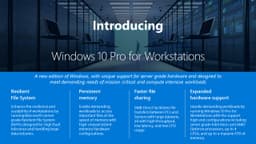
Ultimate performance for advanced workloads – support for server‑grade hardware, massive memory, and resilient storage for data scientists, creators, and engineers

Overview
How It Works
1. UEFI & Boot with Persistent Memory
Ang UEFI firmware ay nagsasaad ng Persistent Memory (NVDIMM‑N) na mga module kasama ng regular na RAM at storage. Ang boot loader ay nagmamapa sa mga ito sa pisikal na espasyo ng address, na ginagawang naa-access ang mga ito bilang byte-addressable memory o bilang isang fast block device (sa App Direct mode).
2. Kernel & NUMA Initialisation
Nakikita ng kernel ang maraming CPU socket at kino-configure ang Non‑Uniform Memory Access (NUMA) node. Ang bawat socket ng CPU ay may sariling lokal na memorya. Sinusubukan ng scheduler na panatilihin ang mga thread sa parehong node upang maiwasan ang cross-socket latency – kritikal para sa performance sa 4-socket na workstation.
3. Resilient File System (ReFS) Volume Mount
Kung gumagamit ang system drive o dami ng data ng ReFS, ang driver ng file system ay nagsasagawa ng mabilis na pagsusuri sa integridad gamit ang mga checksum na nakaimbak sa metadata. Awtomatikong inaayos ang sirang data mula sa mga paulit-ulit na kopya (kung gumagamit ng pag-mirror sa Storage Spaces) nang hindi inaalis ang volume – zero downtime.
4. Workstation Mode Power Plan
Ina-activate ng OS ang Workstation Mode power plan (maliban kung na-override). Hindi nito pinapagana ang pangunahing paradahan, pinapanatili ang CPU sa mataas na pagganap, at pinapaboran ang throughput kaysa sa pagtitipid ng enerhiya. Ang mga gawain sa background tulad ng Windows Update ay higit na na-throttle kumpara sa Pro.
5. SMB Direct (RDMA) Service
Sinisimulan ng serbisyo ng SMB Direct ang mga adapter ng network na may kakayahang RDMA (RoCE, iWARP, o InfiniBand). Maaaring direktang ilipat ang data mula sa memorya ng application patungo sa memorya ng adaptor ng network, na lumalampas sa CPU at bus ng memorya ng system – nakakamit ang malapit-kawad-bilis na paglilipat na may napakababang paggamit ng CPU.
6. Large Memory & Page File Management
Sa suporta para sa hanggang 6 TB ng RAM, ang memory manager ay gumagamit ng malalaking page (2 MB o 1 GB) upang bawasan ang TLB miss. Ang file ng pahina ay naaayon sa laki ngunit bihirang hawakan. Sa mga system na may Persistent Memory sa 'Memory Mode', nakikita ito ng OS bilang pangunahing memorya.
7. Hyper‑V with Nested Virtualisation & DDA
Hyper‑V (katulad ng Pro) ngunit may ganap na suporta para sa Discrete Device Assignment (DDA) – maaari mong ipasa ang isang buong GPU, NVMe drive, o RDMA network card nang direkta sa isang virtual machine para sa near‑bare‑metal na performance. Ang nested virtualization ay nagpapatakbo ng Hyper‑V sa loob ng isang VM para sa pagsubok.
Key Features
Resilient File System (ReFS)
Self-healing file system na may mga stream ng integridad, awtomatikong pag-aayos ng corruption (sa pamamagitan ng Storage Spaces), at suporta para sa mga volume na hanggang 1 yottabyte. Tamang-tama para sa malalaking archive ng data, pag-backup, at storage na may mataas na availability.
Persistent Memory (NVDIMM‑N) Support
Byte-addressable, non-volatile RAM modules. Gumagawa ng mga volume ng DAX para sa napakababang latency, reboot-persistent na storage. Perpekto para sa mga in-memory database, real-time na analytics, at VM fast resume.
SMB Direct (RDMA)
Ang Remote Direct Memory Access networking ay lumalampas sa CPU at TCP stack. Nakakamit ang line-rate throughput (100 GbE) na may microsecond latency at malapit sa zero na overhead ng CPU. Mahalaga para sa high-end na NAS at clustered storage.
Massive RAM & CPU Support
Sinusuportahan ang hanggang 6 TB ng RAM (4‑socket workstation) at 4 na pisikal na CPU socket (hanggang 256 logical core). Ang power plan ng Workstation Mode ay nagpapanatili sa mga core na laging aktibo para sa predictable na mababang latency.
Hyper‑V with DDA & Nested Virtualisation
Direktang ipasa ang buong GPU, NVMe drive, o RDMA NIC sa mga virtual machine. Patakbuhin ang Hyper‑V sa loob ng isang VM para sa pagsubok. Tamang-tama para sa mga container na pinabilis ng GPU o mga lab environment.
Workstation Mode Power Plan
Ino-optimize ang pag-iskedyul ng CPU at patakaran sa kapangyarihan para sa mga compute-intensive na workload. Hindi pinapagana ang pangunahing paradahan, pinapaboran ang pagganap, at binabawasan ang aktibidad sa background.
All Pro Features Included
BitLocker, Remote Desktop Host, Hyper‑V, Group Policy, Windows Sandbox, Assigned Access, Windows Update for Business, at Client Hyper‑V na may nested virtualization.
Storage Spaces & Mirror‑Accelerated Parity
Gumawa ng tiered storage (SSD + HDD) na may parehong mirror at parity space. Sumasama ang ReFS sa Mga Storage Space para sa awtomatikong pag-aayos. Sinusuportahan ang hanggang 64 PB bawat storage pool.
Large Memory Page Support
Awtomatikong gumagamit ng 2 MB na malalaking page (at opsyonal na 1 GB na malalaking page) para bawasan ang TLB miss, pagpapabuti ng performance para sa memory-intensive na application tulad ng SQL Server, SAP HANA, at in-memory analytics.
ReFS (Resilient File System): Data Integrity at Scale
Self-healing, corruption-detecting file system para sa malalaking volume
Integrity Streams & Checksums
Hindi tulad ng NTFS, nag-iimbak ang ReFS ng hiwalay na checksum para sa bawat metadata ng file at, opsyonal, para sa data ng file. Sa bawat pagbabasa, na-verify ang checksum. Kung may nakitang mismatch, awtomatikong kukuha ang ReFS ng tamang kopya mula sa salamin ng Storage Spaces o parity volume – ganap na transparent sa application.
Automatic Repair & Salvage
Kung hindi maaayos ang katiwalian (hal., walang paulit-ulit na kopya), 'sinasa-salvage' ng ReFS ang natitirang data at ini-log ang error. Ang dami ay nananatiling online. Tamang-tama ito para sa malalaking archival store o database kung saan hindi katanggap-tanggap ang downtime.
Scalability Beyond NTFS
Sinusuportahan ng ReFS ang 1 yottabyte (2^80 bytes) na mga laki at volume ng file – higit pa sa anumang kasalukuyang hardware. Maximum na laki ng file: 35 PB (petabytes) sa Windows 10 Workstation (theoretical limit ay exabytes). Laki ng direktoryo: walang limitasyon (hanggang sa kapasidad ng volume).
Spare & Drive Pooling
Kapag ginamit sa Storage Spaces, ang ReFS ay maaaring awtomatikong 'magpagaling' sa pamamagitan ng paggamit ng ekstrang storage. Sinusuportahan din nito ang mirror-accelerated parity (tiered space) para sa kumbinasyon ng performance at kapasidad. Kasama sa edisyon ng workstation ang mga feature na ito (hindi tulad ng Pro, na may limitadong Storage Spaces).
Limitations vs NTFS
Ang ReFS ay hindi sumusuporta sa mga naka-compress na file, Pag-encrypt ng File System (EFS), mga disk quota, mga hard link (maliban sa mga link sa antas ng file), o mga pinahabang katangian. Ito ay hindi bootable (system drive ay dapat na NTFS). Pinakamahusay na ginagamit para sa dami ng data, hindi ang OS drive.
Persistent Memory (NVDIMM‑N): The Best of RAM and SSD
Byte-addressable na storage na nagpapanatili ng data sa mga pag-reboot – napakababa ng latency
What is NVDIMM‑N?
Non‑Volatile Dual Inline Memory Module – isang DIMM na kumikilos tulad ng DRAM (byte‑addressable, nanosecond latency) ngunit nagpapanatili ng data kapag nawalan ng kuryente. Dumating sa dalawang mode: Memory Mode (itinuring bilang pangunahing RAM, ngunit mas mabagal) at App Direct (exposed bilang isang mabilis na block device o DAX volume).
DAX (Direct Access) Volumes
Sa App Direct mode, gagawa ka ng DAX volume - isang file system na direktang nagmamapa sa patuloy na memorya nang walang page caching. Maaaring gamitin ng mga application ang `mmap()` upang ma-access ang PMem nang walang overhead ng system call, na nakakamit ng microsecond persistence. Perpekto para sa mga in-memory database (SQL Server Hekaton, Aerospike).
Instant Reboot & Recovery
Dahil pinapanatili ng PMem ang data, ang isang virtual machine na naka-save sa dami ng DAX ay maaaring ipagpatuloy kaagad pagkatapos ng pag-reboot. Katulad nito, ang malalaking cache o index ay nakaligtas sa mga pag-restart – minuto ng oras ng paglo-load ang na-save.
Supported Hardware
Nangangailangan ng Intel Xeon Scalable o AMD EPYC na may NVDIMM‑N modules (hal., Intel Optane Persistent Memory). Ang Windows 10 Pro for Workstations ay awtomatikong nakakakita at namamahala sa mga interleaved set at namespace sa pamamagitan ng PowerShell (`Get-PmemDisk`, `New-PmemDisk`).
SMB Direct (RDMA): Ultra‑Fast Networking
I-bypass ang CPU at TCP stack para sa high‑throughput, low‑latency na access sa file
How RDMA Works
Ang mga adaptor ng network ng Remote Direct Memory Access (RDMA) (Mellanox, Chelsio, Broadcom) ay nagbibigay-daan sa direktang paglipat ng data sa pagitan ng mga buffer ng memorya ng application nang hindi kinokopya ang data sa memorya ng kernel o ginagamit ang CPU para sa pagproseso ng packet. Gumagamit ang SMB Direct ng RDMA para mapabilis ang mga paglilipat ng file.
Performance Gains
Sa 100GbE network, maaaring mababad ng SMB Direct ang link (≈12 GB/s) na may mas mababa sa 5% na paggamit ng CPU. Ang latency ay maaaring kasing baba ng 2‑3 microseconds. Mahalaga ito para sa pag-edit ng video sa network (multi‑stream 8K), live na VM migration, o pag-access ng remote na NVMe‑over‑Fabrics (NVMe‑oF) na target.
Multi‑Channel & Failover
Awtomatikong gumagamit ang SMB Direct ng maraming RDMA network interface nang sabay-sabay para sa load balancing at failover. Kung mawalan ng link ang isang port, walang putol na gumagalaw ang trapiko sa isa pa – walang abala sa pagbukas ng mga file.
No Special Configuration
Kapag na-install at na-load ang mga driver ng RDMA network, awtomatikong ie-enable ang SMB Direct. Maaari kang mag-verify gamit ang `Get-SmbClientNetworkInterface` sa PowerShell. Naa-access ang mga pagbabahagi sa pamamagitan ng mga karaniwang UNC path (hal., `\\server\share`).
Massive Memory & CPU Support
Hanggang 6 TB RAM, 4 na pisikal na CPU socket, 256 logical core
6 TB RAM Ceiling
Sinusuportahan ng Windows 10 Pro for Workstations ang 6 TB ng pisikal na memorya (RAM) sa mga 64‑bit system – 3x higit pa kaysa sa Windows Server 2019 Standard (na umaabot sa 4 TB para sa OS). Ito ay 48× higit pa sa Pro (128 GB) at 3,000× higit pa sa Home (2 GB para sa 32‑bit).
4 CPU Sockets
Hindi tulad ng Pro (2 socket) at Home (1 socket), sinusuportahan ng Workstation edition ang hanggang 4 na pisikal na CPU socket. Pinagsama sa hyper‑threading at hanggang 64 na mga core bawat socket (hal., AMD EPYC 9004 series), iyon ay hanggang 256 na logical na processor. Ang scheduler ay namamahagi ng mga thread sa mga NUMA node nang matalino.
Large Page Support
Awtomatikong gumagamit ang tagapamahala ng memorya ng 2 MB na 'malalaking pahina' para sa mga alokasyon na higit sa 2 MB, na binabawasan ang mga hindi nakuhang Translation Lookaside Buffer (TLB). Para sa matinding workload, available ang 1 GB na 'malaking pages' sa pamamagitan ng Group Policy o `bcdedit /set increaseuserva`. Pinapabuti nito ang pagganap para sa mga database at in-memory analytics.
Workstation Mode Power Plan
Ang eksklusibong power plan na ito ay nagpapanatiling aktibo ang lahat ng mga core ng CPU (walang paradahan), pinapataas ang resolution ng timer, at inuuna ang mga gawain sa pag-compute kaysa sa pagpapanatili ng background. Dini-disable din nito ang core sleeping (C‑states) para bawasan ang latency. Maaari mo itong piliin mula sa Power Options o sa pamamagitan ng `powercfg /setactive e9a42b02-d5df-448d-aa00-03f14749eb61`.

Hyper‑V Enhancements: DDA & Nested Virtualisation
Dumaan sa mga GPU, NVMe drive, at RDMA NIC sa mga VM
Discrete Device Assignment (DDA)
Binibigyang-daan ka ng DDA na maglaan ng isang PCIe device (GPU, NVMe SSD, RDMA network card) sa isang virtual machine. Ang VM ay puno, direktang access sa hardware - walang hypervisor overhead. Nagbibigay-daan ito sa GPU-accelerated machine learning sa loob ng VM o mataas na performance na storage para sa isang database server.
How to Configure DDA
Gamitin ang PowerShell: `Disable-PnpDevice` sa host para sa PCIe device, pagkatapos ay `Dismount-VmHostAssignableDevice`, pagkatapos ay `Add-VMAssignableDevice`. Dapat isara ang VM sa panahon ng pagtatalaga. Nangangailangan ng host na sumusuporta sa SR‑IOV at Access Control Services (ACS).
Nested Virtualisation
Patakbuhin ang Hyper‑V sa loob ng Hyper‑V virtual machine – perpekto para sa pagsubok ng mga setup ng virtualization, pagpapatakbo ng mga container host, o pagtulad sa isang multi‑server environment sa isang workstation. Maganda ang nested VM performance sa mga CPU na may Intel VT‑x at EPT (pinaka modernong Xeon/EPYC).
Virtual Machine Platform & WSL2
Tulad ng Pro, kasama sa edisyon ng Workstation ang WSL2 at ang Virtual Machine Platform. Ang sobrang CPU at RAM headroom ay nagbibigay-daan sa iyo na magpatakbo ng maraming mabibigat na Linux VM (o WSL2 distribution) nang sabay-sabay nang hindi nagpapabagal sa host.
All Pro Features (BitLocker, RDP Host, Group Policy)
Lahat mula sa Windows 10 Pro, kasama ang mga dagdag sa workstation
BitLocker & BitLocker To Go
Buong AES encryption para sa system at mga naaalis na drive. Nagdaragdag ang workstation ng suporta para sa pag-encrypt ng mga volume ng ReFS (bagaman ang ReFS ay karaniwang ginagamit para sa integridad ng data, hindi pag-encrypt - maaari mong pagsamahin sa BitLocker para sa pareho).
Remote Desktop Host
Tanggapin ang mga papasok na RDP na koneksyon. Sa isang 4‑CPU na workstation, ang mga malalayong session ay nakikinabang sa NUMA awareness. Hindi pinapayagan ang maraming magkakasabay na session (iisang user pa rin), ngunit maaari kang kumonekta nang malayuan habang may gumagamit ng console nang lokal.
Group Policy Management
Mga lokal at domain na GPO. Ang edisyon ng workstation ay nagdaragdag ng mga patakaran para sa ReFS (hal., 'Paganahin ang mga stream ng integridad bilang default'), configuration ng Persistent Memory, at mga setting ng RDMA.
Pros
- ✓Ang ReFS ay nagbibigay ng awtomatikong integridad ng data at pagpapagaling sa sarili – hindi mabibili para sa pangmatagalang imbakan at kritikal na data
- ✓Ang Persistent Memory support ay nagtulay sa agwat sa pagitan ng RAM at SSDs – nakakabaliw na bilis para sa mga database at VM
- ✓6 TB RAM at 4 na CPU – maaaring magpatakbo ng ilang mabibigat na virtual machine o in-memory database sa isang workstation
- ✓SMB Direct (RDMA) ay nagbibigay-daan sa malayuang pag-access ng file nang kasing bilis ng lokal na NVMe – binabago ang mga network na daloy ng trabaho (pag-edit ng video, genomics)
- ✓Discrete Device Assignment (DDA) sa Hyper‑V ay nagbibigay-daan sa GPU pass‑through sa mga VM – perpekto para sa machine learning o CAD sa mga nakahiwalay na kapaligiran
- ✓Ang Workstation Mode ay nagpapanatiling mababa at predictable ang latency - walang hindi inaasahang pangunahing paradahan
- ✓Parehong compatibility ng application gaya ng Pro – gumagana nang maayos ang lahat ng Windows software, kabilang ang mga laro at creative na app
- ✓Storage Spaces + ReFS ay lumikha ng lubos na nababanat, napapalawak na storage pool na nakikipagkumpitensya sa mga nakalaang NAS device
- ✓Maaaring magamit bilang isang magaan na server (hal., SQL Server, file server) nang hindi nagbabayad para sa lisensya ng Windows Server (bagama't may 20‑device na limitasyon sa koneksyon)
- ✓Kasama ang lahat ng Pro business feature – BitLocker, Remote Desktop Host, Group Policy
Cons
- ✗Napakamahal – $309 USD, at nangangailangan ng parehong mahal na hardware (Xeon/EPYC, nakarehistrong ECC RAM, NVDIMMs, RDMA NICs)
- ✗Overkill para sa 99% ng mga user – kahit karamihan sa mga developer at creator ay hindi nangangailangan ng 6 TB RAM o 4 na CPU socket
- ✗Hindi magagamit ang ReFS para sa boot drive – Dapat tumakbo ang OS sa NTFS, na nililimitahan ang paggamit nito sa dami ng data lamang
- ✗Kulang ang ReFS ng ilang feature ng NTFS – walang compression, EFS, disk quota, o hard links (bagaman mayroon itong block cloning)
- ✗Ang Persistent Memory hardware ay angkop pa rin at magastos – Ang mga module ng Intel Optane PMem ay nagkakahalaga ng libu-libong dolyar
- ✗SMB Direct ay nangangailangan ng RDMA network card at switch – hindi karaniwan sa maliliit na opisina o mga setup sa bahay
- ✗Limitado sa 1 kasabay na malayuang gumagamit (tulad ng Pro) – hindi maaaring mag-host ng maraming session ng RDP nang walang Windows Server
- ✗Magtatapos ang suporta sa Oktubre 14, 2025 – katulad ng lahat ng edisyon ng Windows 10
- ✗Ang ilang feature ay nangangailangan ng partikular na katapat ng Windows Server – hal., hindi kasama ang Storage Replica (kailangan ng Server 2019/2022)
- ✗Napakakaunting mga pre-built na workstation ang nagpapadala kasama ng edisyong ito – madalas kailangan mong mag-upgrade mula sa Pro nang mag-isa
- ✗Walang katutubong suporta para sa non-volatile memory express over fabrics (NVMe‑oF) target – maaaring kumilos bilang initiator, hindi target
Use Cases
Hidden & Useful Shortcuts
Master Windows 10 with these time‑saving keyboard shortcuts
Open or close Start Menu
Open Action Centre (notifications & quick settings)
Show or hide desktop (minimise/restore all windows)
Open File Explorer
Open Windows Settings
Lock your PC or switch accounts
Minimise all windows
Restore minimised windows
Choose projection mode (duplicate, extend, second screen only)
Open Run dialog – type `gpedit.msc` for Group Policy, `virtmgmt.msc` for Hyper‑V Manager
Open Windows Search
Open Ease of Access / Accessibility settings
Open Quick Link (power user) menu – includes Disk Management, Event Viewer, and Windows Terminal (Pro)
Open Task View (virtual desktops & timeline)
Switch input language and keyboard layout
Open emoji and kaomoji panel
Peek at desktop temporarily
Minimise all but the active window
Snap windows: left/right halves, maximise, or minimise
Move a window to another monitor
Open or switch to the app pinned at that taskbar position
Create a new virtual desktop
Close the current virtual desktop
Switch between virtual desktops
Open Xbox Game Bar (screenshot, recording, performance overlay)
Start / stop screen recording (Game Bar)
Take full‑screen screenshot and save to Pictures\Screenshots
Take screenshot of the active window (copies to clipboard)
Open Snip & Sketch for custom screenshot (rectangle, freeform, window, fullscreen)
Open clipboard history (must be enabled in Settings)
Open emoji panel (alternative to Win + .)
Open Connect quick action (wireless displays and audio devices)
Open dictation / voice typing
Turn on On‑Screen Keyboard
Zoom in or out using Magnifier
Close Magnifier
Open Feedback Hub
Open Task Manager directly
View open apps (stays on screen after releasing keys)
Switch between open apps
Close the current window or browser tab
Reopen the last closed browser tab
Rename selected file / folder
Refresh the active window
Undo an action
Redo an action
Create a new folder in File Explorer
Open Properties for selected item
Permanently delete a file (bypass Recycle Bin)
Open System Properties (About page)
Launch Local Group Policy Editor (Pro only)
Launch Hyper‑V Manager (Pro only)
Launch Local Security Policy (Pro only)
Launch Resultant Set of Policy (Pro)
Technical Specifications
| Architecture | 64‑bit only (x86‑64); no 32‑bit support in Workstation edition |
| Processor | 1 GHz or faster; supports up to 4 physical sockets, up to 256 logical cores (64 cores per socket with hyper‑threading) |
| RAM | Minimum 4 GB; maximum 6 TB (requires Windows 10 Pro for Workstations licensed and 64‑bit CPU with >44‑bit physical address extension) |
| Storage | System drive: NTFS, minimum 64 GB. Data volumes: ReFS or NTFS; supports Storage Spaces (tiered, mirror, parity) |
| Graphics | DirectX 12 compatible; DDA requires GPU that supports PCIe ACS and SR‑IOV (most workstation GPUs like NVIDIA Quadro RTX, AMD Radeon Pro) |
| Display | Minimum 800x600; recommended 1920x1080 or higher (multi‑monitor up to 4K/8K via Quadro) |
| Persistent Memory | Requires Intel Optane Persistent Memory (DDR‑T) or NVDIMM‑N modules on compatible Xeon/EPYC platforms |
| RDMA Networking | Requires network adapters supporting RoCE (RDMA over Converged Ethernet), iWARP, or InfiniBand (Mellanox ConnectX series, Chelsio T5/T6, Broadcom NetXtreme) |
| ReFS | Available only on Pro for Workstations and Windows Server; cannot boot from ReFS |
| TPM | TPM 2.0 optional (for BitLocker, not required for ReFS or PMem) |
| Virtualisation | Intel VT‑x/EPT or AMD‑V/RVI required for Hyper‑V; DDA requires ACS and IOMMU |
| Internet | Required for initial setup, updates, and Microsoft account features |
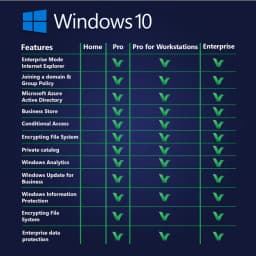
Windows 10 Pro for Workstations vs Windows 10 Pro vs Windows 10 Home
| Feature | workstation | pro | home |
|---|---|---|---|
| Max RAM (64‑bit) | 6 TB | 2 TB | 128 GB |
| Physical CPU Sockets | 4 sockets | 2 sockets | 1 socket |
| ReFS (Resilient File System) | Yes (full support) | No (read‑only) | No |
| Persistent Memory (NVDIMM‑N) | Yes (DAX volumes) | No | No |
| SMB Direct (RDMA) | Yes | No | No |
| Workstation Mode Power Plan | Yes | No | No |
| Hyper‑V Discrete Device Assignment (DDA) | Yes | No (only Pro for Workstations and Enterprise) | No |
| Large Page / Huge Page Memory Support | Yes (1 GB pages configurable) | Up to 2 MB only | Up to 2 MB only |
| Storage Spaces (Tiered & Mirror‑Accelerated Parity) | Full | Limited (no parity tiering) | Very basic (simple/mirror) |
| BitLocker Drive Encryption | Yes | Yes | No |
| Remote Desktop Host | Yes | Yes | No |
| Hyper‑V Virtualisation | Yes (with nested virt) | Yes | No |
| Group Policy Management | Yes (local & domain) | Yes | No |
| Windows Sandbox | Yes | Yes | No |
Frequently Asked Questions
Related Resources
- Opisyal na Pahina ng Windows 10 Pro para sa Mga Workstation
- Pangkalahatang-ideya ng ReFS (Resilient File System).
- Gabay sa Pag-deploy ng Persistent Memory (NVDIMM-N).
- SMB Direct (RDMA) Documentation
- Hyper‑V Discrete Device Assignment (DDA)
- Windows 10 Workstation Mode
- Pangkalahatang-ideya ng Mga Storage Space