
Windows 10 Editions Comparison
Which Windows 10 edition is right for you? A complete feature‑by‑feature guide to Home, Pro, Pro for Workstations, Education, and Enterprise.

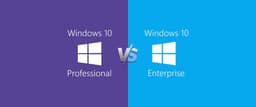
Overview
How It Works
1. Installation Media
同じ Windows 10 ISO または USB ドライブにどのエディションでもインストールできます。セットアップ中に、購入したエディション (Home、Pro など) のプロダクト キーを入力します。キー入力をスキップすると、Windows はデフォルトで Home をインストールします。
2. Feature Unlock at Boot
アクティブ化後、Feature Configuration Store によりエディション固有の機能が有効になります。たとえば、Pro では受信リモート デスクトップ接続が許可されます。家にはありません。カーネルとコア OS は同一であり、機能ポリシーのみが異なります。
3. In‑Place Upgrade
[設定] に新しいキーを入力すると、Home → Pro → Workstation (または適切なライセンスを持つ Education/Enterprise) にアップグレードできます。再インストールは必要ありません。ダウングレードにはクリーンインストールが必要です。
Key Features
Free Upgrade Path for Students
資格のある学生と教師は、すべてのエンタープライズ セキュリティ機能を含む Windows 10 Education を Azure for Education 経由で無料で入手できます。
Most Scalable – Workstation Edition
6 TB RAM、4 CPU ソケット、ReFS、永続メモリ、RDMA をサポート - データ サイエンスとエンジニアリングに最適です。
Best for Large Organisations – Enterprise
Credential Guard、Application Guard、DirectAccess、Defender for Endpoint、および LTSC。ボリュームライセンスが必要です。
Best for Small Business – Pro
BitLocker、リモート デスクトップ ホスト、Hyper‑V、グループ ポリシー – 手頃な価格で管理しやすい。
Best for Home Users – Home
最も低コストで、必須のセキュリティ (Defender)、ゲーム (DirectX 12)、日常的なアプリが含まれています。

Edition Comparison at a Glance
対象ユーザー、価格、主な差別化要因の概要
Windows 10 Home
$139 – 消費者、学生 (個人)、カジュアル ゲーマー。 BitLocker なし、リモート デスクトップ ホストなし、Hyper‑V なし、最大 128 GB RAM、1 CPU ソケット。 Defender、Edge、DirectX 12、Windows Hello が含まれます。
Windows 10 Pro
$199 – 中小企業、パワー ユーザー、開発者。 BitLocker、リモート デスクトップ ホスト、Hyper‑V、Windows サンドボックス、割り当てられたアクセス、グループ ポリシー、最大 2 TB RAM、2 CPU ソケットを追加します。
Windows 10 Pro for Workstations
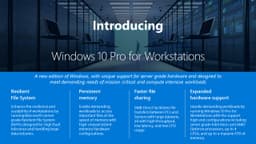
$309 – データ サイエンティスト、CAD エンジニア、研究者。 ReFS (作成)、永続メモリ (NVDIMM)、SMB ダイレクト (RDMA)、最大 6 TB RAM、4 CPU ソケット、ワークステーション モードを追加します。
Windows 10 Education
$0 (対象となる学生/教師) – 学術機関。 Enterprise と同じ (Credential Guard、AppLocker、DirectAccess など) に加えて、テストの受験、学校の PC のセットアップ、共有 PC モード。 Azure for Education 経由で無料。
Windows 10 Enterprise
ボリューム ライセンス – 大規模組織、政府、医療機関。 Credential Guard、Application Guard、DirectAccess、BranchCache、WDAC、Defender for Endpoint (E5 を使用)、LTSC オプションを追加します。 M365 E3/E5 またはソフトウェア アシュアランスが必要です。
Security & Encryption Features
基本的なウイルス対策から仮想化ベースのゼロトラストまで
BitLocker Drive Encryption
ホーム: いいえ。 Pro/Workstation/Education/Enterprise: はい (TPM を使用したフルボリューム AES)。
Credential Guard (VBS)
ホーム/プロ/ワークステーション: いいえ。教育/エンタープライズ: はい (LSASS をカーネルから分離します)。
Application Guard (Edge)
ホーム/プロ/ワークステーション: いいえ。教育/エンタープライズ: はい (ハードウェア分離ブラウジング)。
Windows Defender Application Control (WDAC)
ホーム: いいえ。 Pro/Workstation: 限定的 (基本ポリシー)。教育/企業: 完全 (ハイパーバイザー強制ホワイトリスト)。
AppLocker
ホーム: いいえ。 Pro/Workstation/Education/Enterprise: はい (グループ ポリシーによるユーザーモード アプリケーションのホワイトリスト)。
Hardware Scalability
各エディションがサポートする RAM と CPU の数
Maximum RAM (64‑bit)
ホーム: 128 GB;プロ: 2 TB;ワークステーション: 6 TB;教育: 2 TB;エンタープライズ: 2 TB。
Physical CPU Sockets
ホーム: 1 ソケット;プロ: ソケット 2 つ。ワークステーション: 4 ソケット;教育: 2 ソケット;エンタープライズ: 2 ソケット。
Large Pages (2 MB / 1 GB)
ホーム/プロ/教育/エンタープライズ: 2 MB のみ。ワークステーション: 最大 1 GB の巨大ページ。
Virtualisation & Remote Access
Hyper‑V、リモート デスクトップ、および高度な仮想化機能
Remote Desktop (Host / Inbound)
ホーム: いいえ。 Pro/ワークステーション/教育/エンタープライズ: はい (1 つの同時セッション)。
Hyper‑V Client
ホーム: いいえ。 Pro/Workstation/Education/Enterprise: はい (VM を実行)。
Discrete Device Assignment (DDA)
ホーム/プロ/教育: いいえ。ワークステーション/エンタープライズ: はい (GPU/NVMe を VM に渡します)。
Windows Sandbox
ホーム: いいえ。 Pro/Workstation/Education/Enterprise: はい (テスト用の一時 VM)。
Advanced File & Storage
ReFS、永続メモリ、SMB ダイレクト
ReFS (Resilient File System) – create volumes
ホーム/プロ/教育: いいえ (読み取り専用)。ワークステーション: はい。エンタープライズ: はい (SA 付き)。
Persistent Memory (NVDIMM‑N) DAX volumes
ホーム/プロ/教育: いいえ。ワークステーション: はい。エンタープライズ: はい (サポートされているハードウェアを使用)。
SMB Direct (RDMA) client
ホーム/プロ/教育: いいえ。ワークステーション: はい。エンタープライズ: はい。
Management & Deployment
グループ ポリシー、Intune、DirectAccess、および更新コントロール
Group Policy (local + domain)
ホーム: いいえ。 Pro/ワークステーション/教育/エンタープライズ: はい (gpedit.msc + Active Directory)。
Windows Update for Business (deferral)
ホーム: 一時停止のみ (35 日間)。 Pro/Workstation/Education/Enterprise: 機能の更新は最大 365 日、品質の更新は 30 日間延期されます。
DirectAccess (always‑on VPN)
ホーム/プロ/ワークステーション: いいえ。教育/企業: はい。
BranchCache (WAN caching)
ホーム/プロ/ワークステーション: いいえ。教育/企業: はい。
Long‑Term Servicing Channel (LTSC)
ホーム/プロ/ワークステーション/教育: いいえ。エンタープライズ: はい (ソフトウェア アシュアランス付き)。
Education‑Specific Features
テストを受ける、学校の PC をセットアップする、共有 PC モード
Take a Test (secure browser)
Windows 10 Education (およびカスタマイズ可能な一部の Enterprise) でのみ利用可能です。
Set up School PCs provisioning
Windows 10 Education でのみ利用可能です (アプリ経由)。
Shared PC Mode (auto‑profile cleanup)
教育: フル (組み込み)。 Pro/Enterprise: 制限付き (手動構成)。
Pros
- ✓1 つの統一されたコードベース – すべてのエディションが同じセキュリティ アップデートとドライバー サポートを受け取ります
- ✓インプレースでアップグレード可能 – 再インストールせずに Home → Pro → Workstation に移行
- ✓教育は無料 – 学生と教師はエンタープライズ機能を無料で利用できます
- ✓ワークステーション エディション は、デスクトップ OS 上でサーバーグレードのハードウェアのロックを解除します
- ✓エンタープライズ エディション は、すぐに使えるゼロトラスト セキュリティ (Credential Guard、Application Guard) を提供します
Cons
- ✗ホームには基本的なビジネス機能がありません – BitLocker、RDP ホスト、Hyper‑V はありません
- ✗Pro for Workstations は高価です - 309 ドルで、メリットを得るには高価なハードウェアが必要です
- ✗Enterprise は小売店では利用できません – ボリューム ライセンス (M365 E3/E5) を通じてのみ利用可能です
- ✗教育には学術資格が必要です – 商業利用は禁止です
- ✗比較すると圧倒される可能性があります - 多くの機能は一般的なユーザーには無関係です
Use Cases
Hidden & Useful Shortcuts
Master Windows 10 with these time‑saving keyboard shortcuts
See which edition you are running (System Properties)
Check Windows 10 version and edition
Upgrade to a different edition (change product key)
Quickly see installed RAM and processor (helps decide if Workstation needed)
If this works, you have Pro or above (Group Policy Editor)
Check if TPM is present (required for BitLocker and Credential Guard)
Local Security Policy – available on Pro and above
Technical Specifications
| Minimum RAM for any edition | 4 GB (64‑bit) |
| Minimum storage | 64 GB |
| Processor | 1 GHz or faster, 2+ cores |
| TPM recommendation | TPM 2.0 recommended for BitLocker and VBS features |
| UEFI / Secure Boot | Recommended for all editions, required for some security features |
Feature Comparison Table: Home vs Pro vs Workstation vs Education vs Enterprise
| Feature | Windows 10 Home | Windows 10 Pro | win10Workstation | win10Education | win10Enterprise |
|---|---|---|---|---|---|
| Retail Price | $139 | $199 | $309 | $0 (eligible) | Volume only |
| Max RAM (64‑bit) | 128 GB | 2 TB | 6 TB | 2 TB | 2 TB |
| Max CPU Sockets | 1 | 2 | 4 | 2 | 2 |
| BitLocker Encryption | No | Yes | Yes | Yes | Yes |
| Credential Guard | No | No | No | Yes | Yes |
| Application Guard | No | No | No | Yes | Yes |
| AppLocker / WDAC | No | AppLocker only | AppLocker only | Full | Full |
| Remote Desktop Host | No | Yes | Yes | Yes | Yes |
| Hyper‑V Client | No | Yes | Yes (DDA) | Yes | Yes |
| Windows Sandbox | No | Yes | Yes | Yes | Yes |
| ReFS (create volume) | No | No | Yes | No | Yes (SA) |
| Persistent Memory (PMem) | No | No | Yes | No | Yes |
| SMB Direct (RDMA) | No | No | Yes | No | Yes |
| DirectAccess | No | No | No | Yes | Yes |
| BranchCache | No | No | No | Yes | Yes |
| Group Policy (domain) | No | Yes | Yes | Yes | Yes |
| Windows Update for Business (deferral) | 35 days pause | Up to 365 days | Up to 365 days | Up to 365 days | Up to 365 days + rings |
| LTSC (Long‑Term Servicing) | No | No | No | No | Yes (with SA) |
| Take a Test / Set up School PCs | No | No | No | Yes | No |