
Windows 10 Home
The world’s most popular operating system – built for effortless everyday computing, immersive gaming, and creative exploration

Overview
How It Works
1. UEFI & Boot Manager
The UEFI firmware wakes up the hardware and hands control to the Windows Boot Manager. It loads the kernel, the hardware abstraction layer (HAL), and essential drivers needed to talk to your disk, keyboard, and display.
2. Kernel & Session Manager
The kernel initialises core services and starts the Session Manager (`smss.exe`). This process prepares the user environment, mounts system drives, and displays the login screen where you sign in with a password, PIN, or Windows Hello face/fingerprint.
3. Explorer Shell & Desktop
After a successful login, the Explorer shell takes charge. It draws your taskbar, Start Menu, system tray, and desktop icons. This is the moment Windows becomes the familiar, interactive workspace you rely on every day.
4. Pre‑emptive Multitasking Scheduler
Windows uses a pre‑emptive multitasking scheduler that allocates CPU time fairly among all running applications. If one program freezes, it cannot lock up your entire PC – you can always switch to another app or open Task Manager to end the unresponsive task.
5. NTFS File System
All your files, documents, and programs sit on an NTFS volume. NTFS provides journaling (recovery after crashes), fine‑grained file permissions, and support for very large drives, keeping your data safe and organised.
6. Windows Defender & Automatic Updates
In the background, Windows Defender Antivirus continuously monitors for malware using cloud‑based machine learning. Simultaneously, Windows Update downloads and installs security patches and feature improvements so your system always stays protected without any manual intervention.
7. Windows Subsystem for Linux (WSL)
For developers and power users, WSL2 runs a full Linux kernel inside Windows. You can use bash, Python, Docker, and other Linux tools natively – no virtual machine required – perfectly bridging the gap between development and everyday tasks.
8. Self‑Maintaining Design
The entire system is layered, with clear separation between user mode and kernel mode. This design, combined with automatic servicing, means Windows 10 Home remains reliable and responsive even after years of daily use.
Key Features
Start Menu
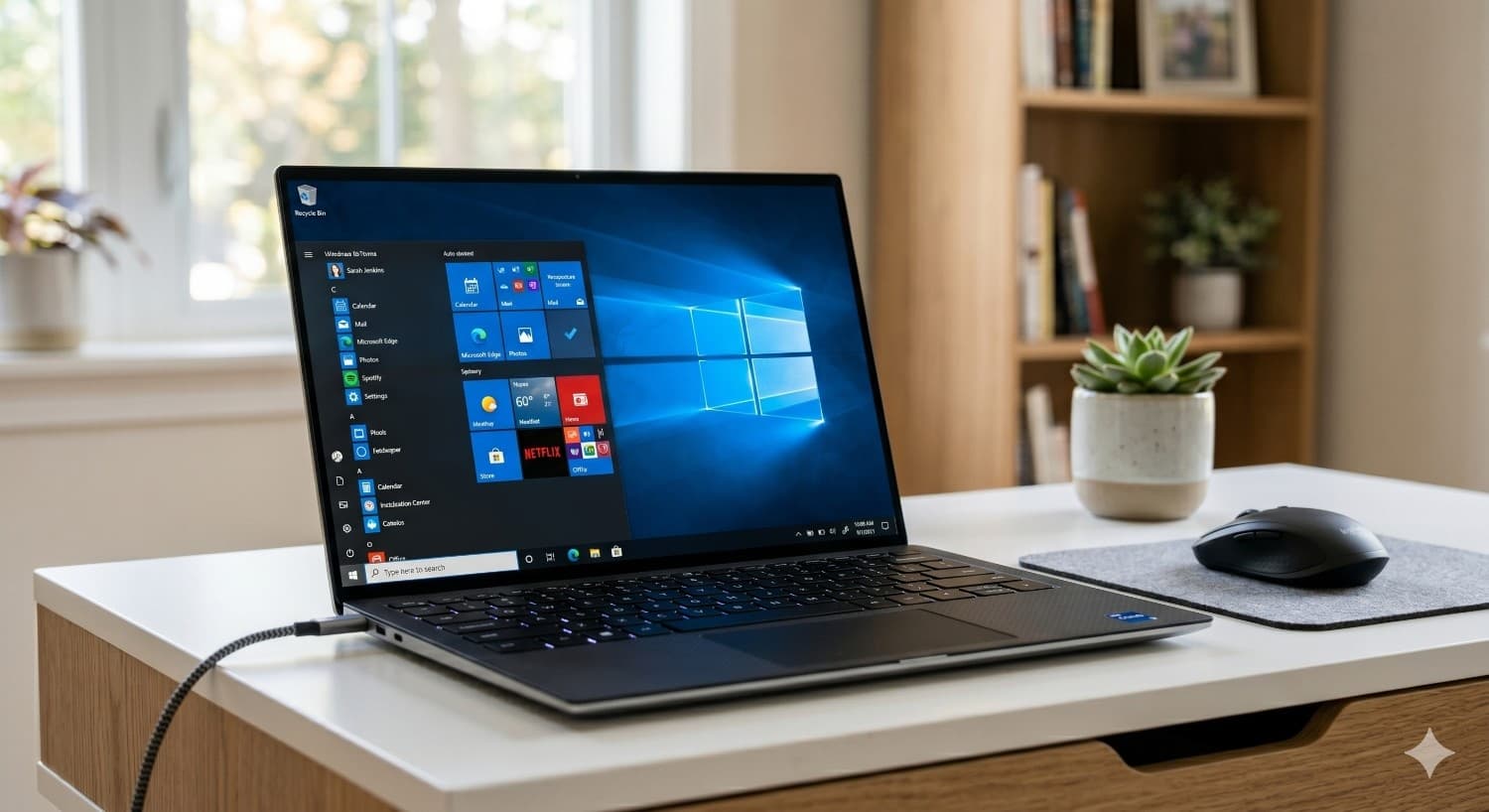
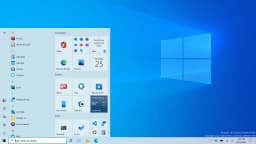
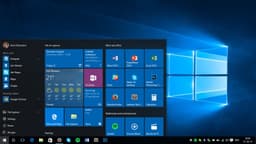
The Start Menu combines a classic app list with customisable live tiles for news, weather, and calendar events. Search for files, apps, or web results directly from the integrated search box. Pin your favourite tools, resize tiles, and create groups for quick access.
Microsoft Edge
Based on Chromium, Edge offers vertical tabs, tracking prevention, Immersive Reader, and full Chrome extension support. Sync passwords and favourites across all devices with a Microsoft account.
Cortana
Your personal digital assistant can set reminders, answer questions, manage your calendar, and control smart home devices using natural voice commands. Cortana learns your preferences over time to become more helpful.
Windows Hello
Sign in with your face, fingerprint, or a device PIN – no passwords needed. Windows Hello biometric data is encrypted and stored on a dedicated TPM chip, ensuring enterprise‑grade security for home users.
Virtual Desktops & Snap Assist
Create multiple desktops to separate projects. Snap Assist suggests neighbouring windows when you drag an app to the screen edge, making multitasking on a single monitor incredibly efficient.
Gaming & DirectX 12
DirectX 12 Ultimate enables ray tracing, variable rate shading, and mesh shaders for console‑quality graphics. Game Mode optimises CPU/GPU resources, while the Xbox Game Bar lets you record and chat without leaving the game.
Windows Defender & Firewall
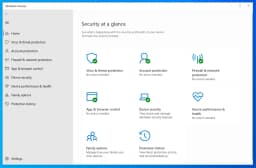
Built‑in antivirus with real‑time protection, behavioural analysis, and cloud‑delivered security updates. The firewall monitors network traffic to block unauthorised access. Controlled Folder Access prevents ransomware encryption.
OneDrive Cloud Storage
Get 5 GB free cloud storage with Files On‑Demand, which keeps your entire cloud library visible without using local space until you open a file. Personal Vault adds extra security for sensitive documents.
Microsoft Store & Apps
A curated marketplace for apps, games, and movies. Universal Windows Platform (UWP) apps run in secure sandboxes, and the store now supports classic Win32 apps for a one‑stop experience.
Accessibility
Inclusive tools like Narrator, Magnifier, Speech Recognition, and Eye Control empower users with visual, hearing, or mobility impairments. High‑contrast themes and closed captioning are built in.
Start Menu & Taskbar: Your Command Centre
The familiar launchpad, reimagined
Live Tiles & Groups
The right side of the Start Menu can be filled with dynamic Live Tiles that show scrolling news headlines, weather updates, calendar appointments, recent photos, and email previews. You can resize each tile (small, medium, wide, large), drag them into custom groups, and even create folder‑like stacks by dragging one tile on top of another.
All Apps List & Recently Added
The left pane lists your most‑used apps automatically, but clicking ‘All apps’ reveals an alphabetical list of every single program installed on your PC. Newly installed software is highlighted at the top so you don’t have to hunt for it.
Power Options & Account Menu
The far‑left sidebar (also called the ‘hamburger menu’) holds your user account picture, document folders, and the crucial Power button – Sleep, Shut down, and Restart are always just one click away. You can also quickly switch to another user account or lock the PC from here.
Integrated Search (Instant Everything)
The taskbar search box (or press `Win + S`) doesn’t just find files – it acts as a universal command prompt. Type a person’s name to find a contact, a math equation to get a quick calculation, a flight number to get status, or an app name to launch it instantly. Web results are integrated directly into the search flyout.
Taskbar Pinning & Customisation
Pin your absolute favourite apps directly to the taskbar for one‑click access. Use drag‑and‑drop to rearrange them in any order. The taskbar itself can be locked, unlocked, resized (taller), and moved to any of the four screen edges. Right‑click the taskbar to toggle search, task view, and touch keyboard buttons on or off.
System Tray & Action Centre
The right side of the taskbar shows the System Tray – clock, volume, network, battery, and background app icons. Clicking the speech‑bubble icon opens the Action Centre, a slide‑out panel where all notifications are collected, and quick actions like Wi‑Fi, Bluetooth, Night Light, and Tablet Mode can be toggled instantly.
Task View & Virtual Desktops
The Task View button (or `Win + Tab`) zooms out to show thumbnail previews of every open window. At the top, you can click ‘+ New Desktop’ to create virtual desktops. Keep one desktop for work with Office apps opened, a second for social media, and a third for gaming – each completely isolated. Drag windows between desktops with ease.
Right‑Click (Jump Lists) & Keyboard Shortcuts
Right‑click any taskbar icon to reveal a Jump List – a menu of recent files, frequent tasks, and quick actions specific to that app. For example, right‑clicking the Word icon shows recent documents; right‑clicking the browser icon lets you open a new window or a private session immediately. Combine with `Win + Number` keyboard shortcuts to launch or switch to pinned apps at light speed.
Taskbar Toolbars & Desktop Peek
You can add extra toolbars to the taskbar (right‑click → Toolbars) such as an address bar, links folder, or even a desktop toolbar. The tiny rectangle at the far‑right edge of the taskbar is the ‘Peek’ button – hover your mouse there to quickly glance at the desktop without minimising anything; click it to actually show the desktop.
Start Menu Customisation & Settings
Go to Settings → Personalisation → Start to toggle features like showing more tiles, displaying recently added apps, showing frequently used apps, and enabling full‑screen Start (tablet mode). You can also choose which folders appear on the Start sidebar (Settings, Documents, Pictures, etc.) for even faster navigation.

Microsoft Edge: A Browser Built for Speed and Security
Based on Chromium, with extra privacy and productivity features
Chromium Power Under the Hood
Edge is now built on the same open‑source engine as Google Chrome, so every Chrome Web Store extension works instantly. Install ad blockers, password managers, grammar checkers, and developer tools without any compatibility issues. The browser stays up‑to‑date with the latest web standards and security patches automatically.
Vertical Tabs – Organise Differently
Instead of a crowded horizontal tab strip, switch to vertical tabs on the left. You can see the full title of each open page, drag to reorder, group related tabs, and reclaim precious vertical screen space on widescreen monitors. It’s a game‑changer for heavy multitaskers.
Collections – Research Made Simple
Drag text, images, and links into a Collection to save them together. Perfect for planning a trip, gathering project references, or compiling a school report. Collections sync across devices and can be exported directly into Word or Excel.
Tracking Prevention That Actually Works
Choose from Basic, Balanced, or Strict tracking prevention. Edge blocks known trackers without breaking websites, and you can see exactly how many trackers were blocked on each site. Your browsing stays private and faster.
Immersive Reader – Distraction‑Free Reading
Click the book icon to strip away ads, sidebars, and clutter. Immersive Reader leaves only the article text and images, with adjustable font size, spacing, and even a Read Aloud feature that narrates the page in natural voices. Essential for students and anyone with reading difficulties.
Seamless Sync Across Devices
Sign in with your Microsoft account and Edge syncs passwords, favourites, browsing history, and even open tabs across your Windows PC, Android phone, and iOS devices. Start reading an article on your phone and finish it on your desktop with a single click.
Built‑in PDF Reader & Annotator
Open any PDF directly in Edge and use the highlighter, pen, and text tools to annotate. Fill out forms, sign documents digitally, and even use the Read Aloud function on PDFs. No need for a separate PDF application.
Performance & Battery Efficiency
Edge is engineered to be gentle on your laptop’s battery. Sleeping tabs and efficient resource management mean you can browse longer without plugging in. It’s officially one of the most energy‑efficient browsers available for Windows.

Windows Defender Antivirus & Firewall: Invisible Protection
Enterprise‑grade security built into your PC, no subscription required
Real‑Time Protection
Windows Defender constantly scans every file you open, every app you launch, and every download that lands on your disk. It uses machine learning from over a billion Windows devices to spot malicious patterns instantly – long before traditional signature updates could react. If a threat is detected, it’s quarantined in seconds without you ever noticing.
Behavioural Analysis & Cloud‑Delivered Defence
Instead of relying only on known virus signatures, Defender monitors how programs behave. If an application suddenly tries to encrypt thousands of files (a classic ransomware move), the behavioural engine immediately suspends it and alerts you. Cloud‑powered artificial intelligence then cross‑references the suspicious activity against Microsoft’s global threat database in real time.
Ransomware Protection & Controlled Folder Access
Controlled Folder Access is your ultimate shield against ransomware. You define which folders are sacred (Documents, Pictures, etc.), and only trusted apps are allowed to write to them. Even if a ransomware slips through, it simply cannot touch your personal files – Defender blocks the unauthorised write attempt and notifies you.
Windows Defender SmartScreen
SmartScreen checks every website you visit and every downloaded file against a constantly updated Microsoft reputation database. If you’re about to open a known phishing site or run a newly‑released malicious installer, SmartScreen displays a full‑screen red warning, giving you a chance to back away safely.
Windows Firewall: Your Digital Fortress
The built‑in Windows Firewall monitors both inbound and outbound network traffic. It silently blocks port scans, worms, and unauthorised connection attempts from the internet. Each application must request permission to communicate, and you can customise rules for specific networks (Public, Private, Domain) – all without any confusing pop‑ups.
Automatic Updates & Silent Patching
Defender’s virus definitions and the firewall’s engine update automatically through Windows Update – you never need to manually download anything. Even the core security platform receives silent monthly improvements, closing newly discovered vulnerabilities before attackers can exploit them.
Family Safety & Parental Controls
Connected to your Microsoft account, Family Safety lets you create child accounts and manage their screen time, block inappropriate websites, and monitor their activity. You receive weekly email reports showing what your kids have been doing on the PC – all managed from a single dashboard, no extra software required.
Performance & Integration
Because Defender and the Firewall are deeply integrated into Windows, they consume far fewer CPU and RAM resources than most third‑party antivirus suites. There are no annoying ads, no pop‑ups begging for upgrades, and no annual subscription fees – just pure, invisible protection that keeps your system fast and safe.
DirectX 12 Ultimate & Xbox Integration: The Ultimate Gaming Platform
Console‑quality graphics, lightning‑fast load times, and seamless social features
DirectX 12 Ultimate – Next‑Gen Graphics
Ray tracing, variable rate shading, and mesh shaders come together to replicate cinema‑quality lighting, reflections, and shadows. Games like Cyberpunk 2077 and Minecraft RTX look breathtakingly realistic. DirectX 12 Ultimate is the same graphics API powering the Xbox Series X|S, guaranteeing full cross‑platform compatibility.
Auto HDR – Vibrant Colours Automatically
Auto HDR upgrades older DirectX 11/12 games with high‑dynamic‑range colour on HDR‑capable displays. Colours become richer, bright scenes pop, and dark areas reveal hidden detail – all without the developer lifting a finger. Classics like Skyrim and Doom feel brand new.
Xbox Game Bar – Your In‑Game Command Centre
Press `Win + G` to open the Game Bar overlay. Capture screenshots, record gameplay clips, chat with Xbox friends, monitor CPU/GPU performance, and control Spotify playback – all without leaving the game. It’s a fully integrated social hub.
Game Mode – Performance When It Matters
Game Mode tells Windows to prioritise CPU and GPU resources for the active game. Background apps are throttled, Windows Update waits, and notifications are silenced. The result: higher frame rates, fewer stutters, and a smoother experience even on mid‑range hardware.
Xbox Game Pass – 100+ Games Included
An Xbox Game Pass subscription unlocks a rotating library of over 100 high‑quality PC games, including every Xbox Game Studios title on launch day. Play Halo Infinite, Forza Horizon 5, Age of Empires, and many more without buying them individually.
Cross‑Play & Cross‑Save
Team up with friends on Xbox consoles in games like Minecraft, Sea of Thieves, and Grounded. Your progress saves across devices, so you can continue your adventure on console or PC seamlessly. The ecosystem unites players, not platforms.
Competitive eSports & Indie Gems
Windows 10 Home supports the world’s largest gaming library. From competitive eSports titles like Valorant and League of Legends to innovative indie games on Steam and Itch.io, every genre is at home. Regular driver updates from NVIDIA, AMD, and Intel keep performance optimised.
Streaming & Broadcasting Built In
With the Game Bar, you can start streaming to Twitch or YouTube with a single click. Share your gameplay moments via Xbox Live or capture the perfect highlight clip to share on social media. The tools are already there – no extra setup required.
Windows Hello: Password‑Free Sign‑In
Your face or fingerprint is your password – fast, secure, and futuristic
How Windows Hello Works
Windows Hello uses a specialised infrared (IR) camera or a fingerprint reader to scan your unique physical features. The IR camera creates a 3D depth map of your face, so a printed photo can’t fool it. A fingerprint sensor reads the ridges and valleys of your finger. In both cases, the raw biometric data never leaves the device.
Recognition in Under 2 Seconds
The moment you sit down in front of your PC, the IR camera wakes up and identifies you in less than two seconds. It works in complete darkness and adapts to gradual changes like growing a beard, putting on glasses, or applying make‑up. No more fumbling with passwords.
Trusted Platform Module (TPM) – The Vault
Your face and fingerprint data are encrypted and stored inside a dedicated Trusted Platform Module (TPM) chip. This tamper‑resistant hardware isolates your biometric secrets from the rest of the system. Even if malware infects your PC, it cannot steal your fingerprint or face data.
Your Data Stays Yours
Microsoft never receives your face or fingerprint. The biometric data never leaves your device, and it’s never synced to any cloud. The same enterprise‑grade security used by governments and banks protects your identity, but it’s built right into Windows 10 Home at no extra cost.
PIN – The Smart Companion
Windows Hello also encourages you to set up a PIN. Unlike a typical password, the PIN is device‑specific – it’s useless on any other machine and is never transmitted over the internet. Combined with biometrics, it provides true two‑factor authentication without an extra app or code.
Unlocking Apps & Websites
Windows Hello doesn’t stop at the lock screen. It can unlock the Microsoft Edge password manager, sign you into apps from the Microsoft Store, and even authenticate purchases. Just glance at your camera or tap your fingerprint reader – no typing required.
Adaptive & Inclusive
Windows Hello adapts if your appearance changes significantly – you can run through a quick ‘improve recognition’ scan. It’s also accessible: users who cannot type a password can simply look at the screen. The technology is designed to be fast, secure, and easy for everyone.
OneDrive & Cloud Integration: Your Files Everywhere
Seamless backup, sync, and file access across all your devices
5 GB Free – Your Cloud Drive in File Explorer
Every Windows 10 Home user gets 5 GB of free OneDrive storage with a Microsoft account. OneDrive appears as an ordinary folder inside File Explorer. Drag files in, and they automatically sync to the cloud and push to your other Windows PCs, tablets, and phones. It’s the easiest backup you’ll ever use.
Files On‑Demand – All Your Files, Zero Space
With Files On‑Demand, you see all your cloud files as if they were local, but they don’t occupy any disk space until you open them. Perfect for laptops with small SSDs: keep your entire digital library at your fingertips without sacrificing a single gigabyte of local storage.
Personal Vault – Extra‑Secure Lockbox
OneDrive Personal Vault stores your most sensitive documents – tax records, passport scans, contracts – in a dedicated area that requires strong authentication (fingerprint, face, PIN, or code) to access. Even if someone gains access to your account, the Vault stays locked.
Real‑Time Co‑Authoring with Microsoft 365
Share a Word document, an Excel spreadsheet, or a PowerPoint presentation and collaborate in real time. You see each other’s changes as they happen, complete with coloured cursors and live comments. No more emailing files back and forth.
Cross‑Device Sync & Automatic Camera Upload
Install the OneDrive app on your phone and enable camera upload – every photo you take is automatically saved to OneDrive and appears on your PC instantly. Your files, documents, and memories stay in sync across all your devices without a single cable.
Ransomware Recovery & Version History
If a ransomware attack encrypts your local files, OneDrive can restore your entire OneDrive folder to a point in time before the attack. Version history lets you view and restore previous versions of a file up to 30 days back, so you can always undo accidental changes or malicious edits.
Share with Anyone, Control Access
Right‑click any file or folder and choose Share to send a link. Control whether recipients can only view or also edit. Set an expiration date on the link or password‑protect it. No accounts required for the people you share with – just the link.
Pros
- ✓Extremely intuitive interface with a massive global user community and help resources
- ✓Vast software library – nearly all Windows applications, peripherals, and games are compatible
- ✓Best gaming platform with DirectX 12 Ultimate, Auto HDR, and Xbox integration
- ✓Regular updates ensure security and feature improvements without extra cost
- ✓Windows Hello biometric sign‑in is faster and more secure than passwords
- ✓Snap Assist and Virtual Desktops dramatically boost multitasking productivity
- ✓Built‑in antivirus & firewall reduce the need for third‑party security suites
- ✓OneDrive integration with Files On‑Demand saves local storage
- ✓Microsoft Edge is now as fast as Chrome but with better privacy controls
- ✓Strong accessibility features make the OS usable by everyone
- ✓Windows Subsystem for Linux allows developers to run Linux tools natively
Cons
- ✗Home edition lacks BitLocker encryption, Remote Desktop host, and Group Policy management
- ✗Forced automatic updates can occasionally restart your PC at inconvenient times (Active Hours can be set)
- ✗Telemetry data collection raises privacy concerns, though most can be reduced in settings
- ✗OEM versions often come with pre‑installed bloatware that require manual removal
- ✗Limited customisation compared to Linux; desktop theming is restrictive without third‑party tools
- ✗Windows Search can sometimes be slow or fail to index files correctly
- ✗Initial setup pushes a Microsoft account sign‑in (but can be bypassed)
- ✗Maximum 128 GB RAM for 64‑bit (Pro supports 2 TB) – not a limitation for home users
- ✗No native file/folder encryption (only Pro has BitLocker); third‑party tools needed
Use Cases
Hidden & Useful Shortcuts
Master Windows 10 with these time‑saving keyboard shortcuts
Open or close the Start Menu
Open Action Centre (notifications & quick settings)
Show or hide the desktop (minimise/restore all windows)
Open File Explorer
Open Windows Settings
Lock your PC or switch accounts
Minimise all windows
Restore minimised windows
Choose a presentation / projection mode
Open the Run dialog box
Open Windows Search
Open Ease of Access / Accessibility settings
Open the Quick Link (power user) menu
Open Task View (virtual desktops & timeline)
Switch input language and keyboard layout
Open the emoji and kaomoji panel
Peek at the desktop temporarily
Minimise all but the active window
Snap windows: left/right halves or maximise/minimise
Move a window to another monitor
Open or switch to the app pinned at that taskbar position
Create a new virtual desktop
Close the current virtual desktop
Switch between virtual desktops
Open Xbox Game Bar (screenshot, record, chat)
Start / stop screen recording (Game Bar)
Take a full‑screen screenshot and save to Pictures
Take a screenshot of the active window
Open Snip & Sketch for a custom screenshot
Open clipboard history (must be enabled)
Open emoji panel (alternative to Win + .)
Open the Connect quick action (wireless display)
Open dictation / voice typing
Turn on the On‑Screen Keyboard
Zoom in or out using Magnifier
Close Magnifier
Open Feedback Hub
Open Task Manager directly
View open apps (stays on screen after releasing keys)
Switch between open apps
Close the current window or browser tab
Reopen the last closed browser tab
Rename the selected file / folder
Refresh the active window
Undo an action
Redo an action
Create a new folder in File Explorer
Open Properties for the selected item
Permanently delete a file (bypass Recycle Bin)
Open System Properties (About page)
Copy the selected item
Cut the selected item
Paste the copied / cut item
Select all items in a window or document
Find text in the current document or webpage
Print the current document
Open a new window in File Explorer or browser
Open Feedback Hub
Open File Explorer
Open Run dialog
Open Search
Technical Specifications
| Architecture | 64‑bit (x86‑64) – 32‑bit also available but deprecated |
| Processor | 1 GHz or faster with 2 or more cores; System‑on‑Chip (SoC) compatible |
| RAM | 4 GB minimum; maximum 128 GB (64‑bit) |
| Storage | 64 GB or larger drive (SSD strongly recommended for performance) |
| Graphics | DirectX 12 compatible with WDDM 2.0 driver |
| Display | Minimum resolution 800x600; recommended 1920x1080 or higher |
| TPM | TPM 2.0 is required for Windows 11 upgrade readiness but not enforced for Windows 10 Home itself |
| Secure Boot | Supported, not mandatory for installation |
| Windows Hello | Requires IR camera or fingerprint reader; PIN always available |
| Cortana | Requires microphone; supported in select languages |
| Internet | Required for initial setup, updates, and Microsoft account features |
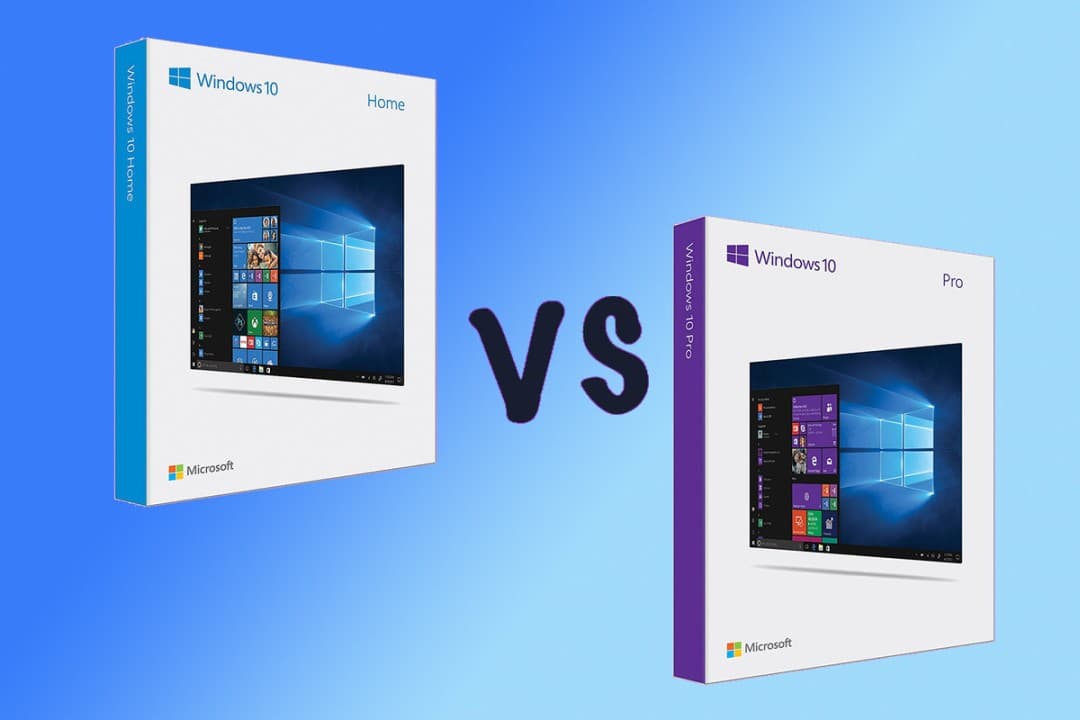
Windows 10 Home vs Windows 10 Pro
| Feature | Windows 10 Home | Windows 10 Pro |
|---|---|---|
| BitLocker Drive Encryption | No | Yes |
| Remote Desktop Host | No (Client only) | Yes |
| Group Policy Management | No | Yes |
| Enterprise Mode IE | No | Yes |
| Assigned Access | No | Yes |
| Hyper‑V Virtualisation | No | Yes |
| Windows Sandbox | No | Yes |
| Max RAM (64‑bit) | 128 GB | 2 TB |
| Windows Update for Business | No | Yes |